> For the complete documentation index, see [llms.txt](https://docs.lightact.com/llms.txt). Markdown versions of documentation pages are available by appending `.md` to page URLs; this page is available as [Markdown](https://docs.lightact.com/preparing-your-hardware-for-lightact/testing-video-playback.md).
# Testing video playback
This page covers how to use the **Video Playback Template project** to test your server’s video playback capabilities. It also tests for any underlying hardware issues that might happen under heavy load.
The result of this test is information on how many video files your server can play at the same time.
{% file src="/files/S9EnbxkTMBGTRpmLy8zg" %}
#### Test Setup Example
* **4 x 4K Outputs** connected to GPU
* **1 x 4K Output** for GUI
* **3 x 4K Outputs in Mosaic** → 11520×2160
* Output refresh rate:
* **60Hz** for 30/60 fps videos
* **50Hz** for 25/50 fps videos
***
### Preparation
1. **Install required tools**:
* LightAct 4.11.0-89 or newer
* Advanced Renamer
* MediaInfo
2. **Setup Mosaic** (if using GUI + multiple outputs)
3. **Prepare Test Videos**:
* Format: HAP (number of chunks = number of CPU cores), NotchLC (Best quality)
* Resolutions & framerates to match wanted test parameters
* Constant bitrate
* Duplicate and rename video files using Advanced Renamer to: `VideoFileName_1`, `VideoFileName_2`, ...
4. **Close all unnecessary apps**
* No software running except LightAct
* Close **NVIDIA Control Panel** after setting everything up
{% hint style="warning" %}
We use a special video file that is suitable for testing both in HAP and NotchLC codecs. Contact us if you'd like us to send it to you. This is the only way to ensure the tests are comparable to one another.
{% endhint %}
***
### Overview of the project
#### General
* Close all LightAct windows **except Performance**
* GUI (the main LightAct window) should run in **Fullscreen Mode**. Press F11 to toggle.
#### How the Project Works
* When the project opens, we **wait for thumbnails to load**
* Then, every 1–2 seconds, a new Play video node starts playing a new video.
* Each Play video node is playing a **unique** video file.
#### Project Structure
**Layers:**
1. **Loading thumbnails** layer waits for thumbnails to load
2. **Video layer** plays videos one by one (delay adjustable)
**Markers:**
* **Marker 1**: Start of test → logs **"Test started"**
* **Marker 2**: End of test → logs **"Test concluded"**
#### Output Behavior:
* **Output** enabled
* **Traveling Lines** override for smoothness monitoring
***
### How to Set It Up
1. In **Loading thumbnails** layer, adjust `Delay` (if more time needed to load thumbnails)
2. In **Video layer**, adjust `Delay` (if needed)
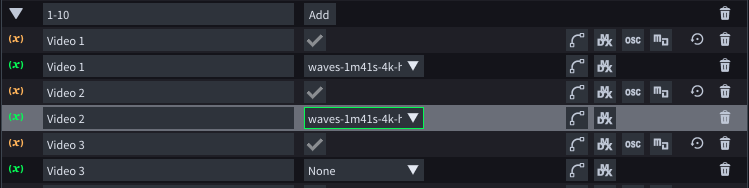
3. Import videos & assign each one to a different **Play video** node:
* Select **Video layer** → Properties window → Set each video variable to a separate file
(Assigning videos to exposed variables of Play video nodes)
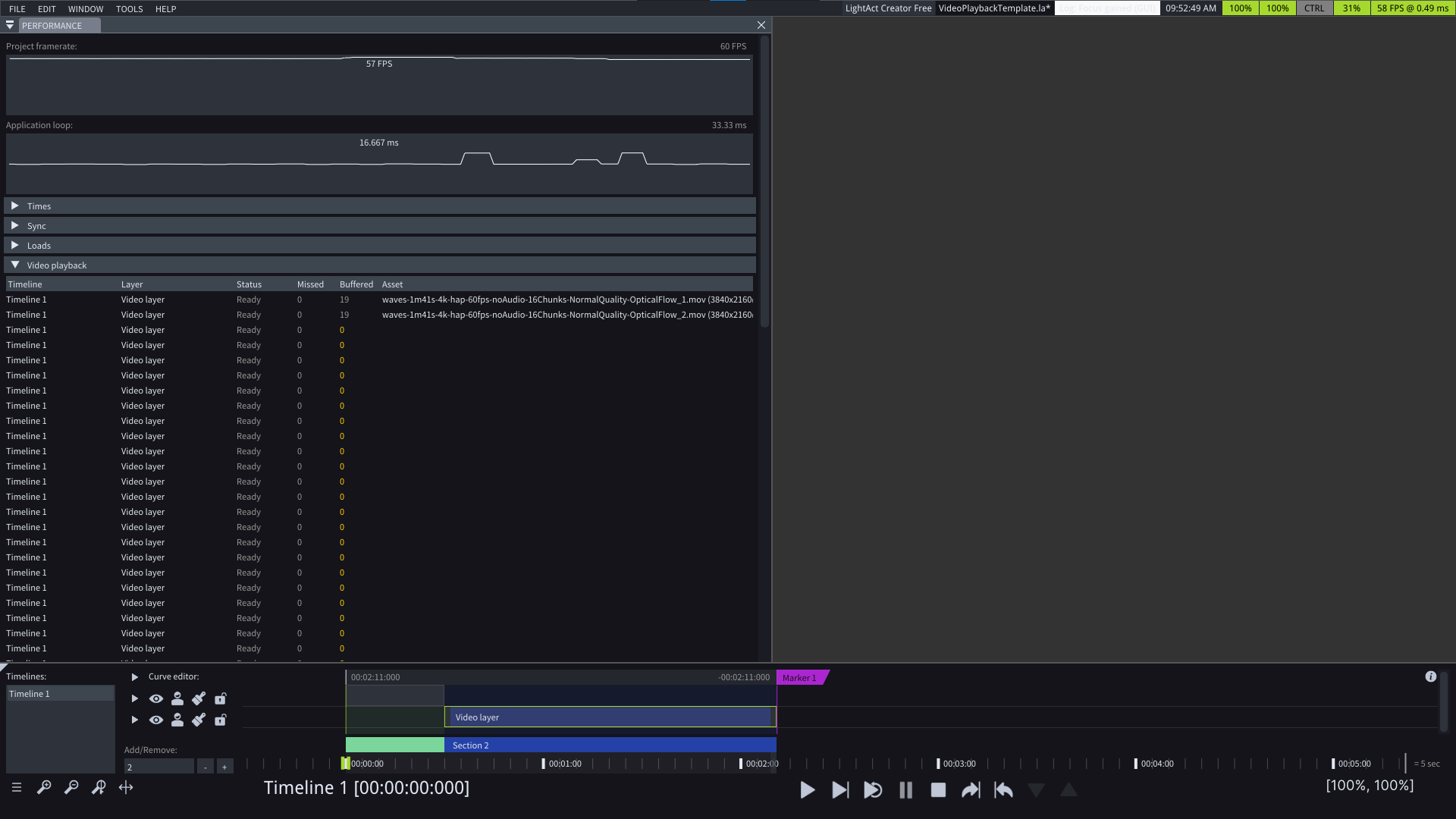
4. Optimize Workspace by keeping only essential windows open (Performance, Timeline editor). Each window uses resources, that's why we want to keep it minimal.
(Optimized workspace)
5. In Performance window scroll down and you'll see the status of every Play video node.
6. Save and reopen the project. When the test starts, in Performance window monitor Missed frames and also watch the output monitor for stuttering.
***
### Interpreting Results
The max ammount of videos you can play is when:
* **No continuous missed frames** during playback (initial missed frames are okay for this test)
* **Traveling Lines override** plays smoothly without stuttering