> For the complete documentation index, see [llms.txt](https://docs.lightact.com/llms.txt). Markdown versions of documentation pages are available by appending `.md` to page URLs; this page is available as [Markdown](https://docs.lightact.com/timelines/cue-list.md).
# Cue List
You can access the *Cue List* window by going to **Window** and choosing **Cue List**.
In the *Cue List* window, you can see a list of all *Cues* included in the entire project and you can easily trigger predetermined *Cue* actions during a live event.
* In the **Trigger** column, each *Cue* displays an icon that matches the ***Play state change*** property of a given cue. Clicking on the **Trigger** icon will prompt the Playhead to jump to that *Cue* and execute the *On playhead pass* action.
* In the **Position** column, each *Cue* displays its position in the *Timeline*, as well as its position in the *Timeline* relative to the *Playhead*.
* **Play state change** column determines whether the play state of this Timeline should change when that cue is triggered.
{% hint style="info" %}
**Good to know:** If the **Cue** is placed beyond the timeline duration in the *Timeline*, its position in the *Cue list* window will have a yellow warning color. You need to disable *Auto duration* in the Timeline's properties for that.
{% endhint %}
## Use as Cue checkbox for Sections and Markers
Sections and Markers appear in the Cue list window only of their Use as cue checkbox is set to true.
## Global Cues
*Global Cues* allow you to trigger actions that are not tied to a specific position on the *Timeline*. This is useful in situations like fading out when a performer leaves the stage, ensuring flexibility and responsiveness during live events.
### Event Global Variable
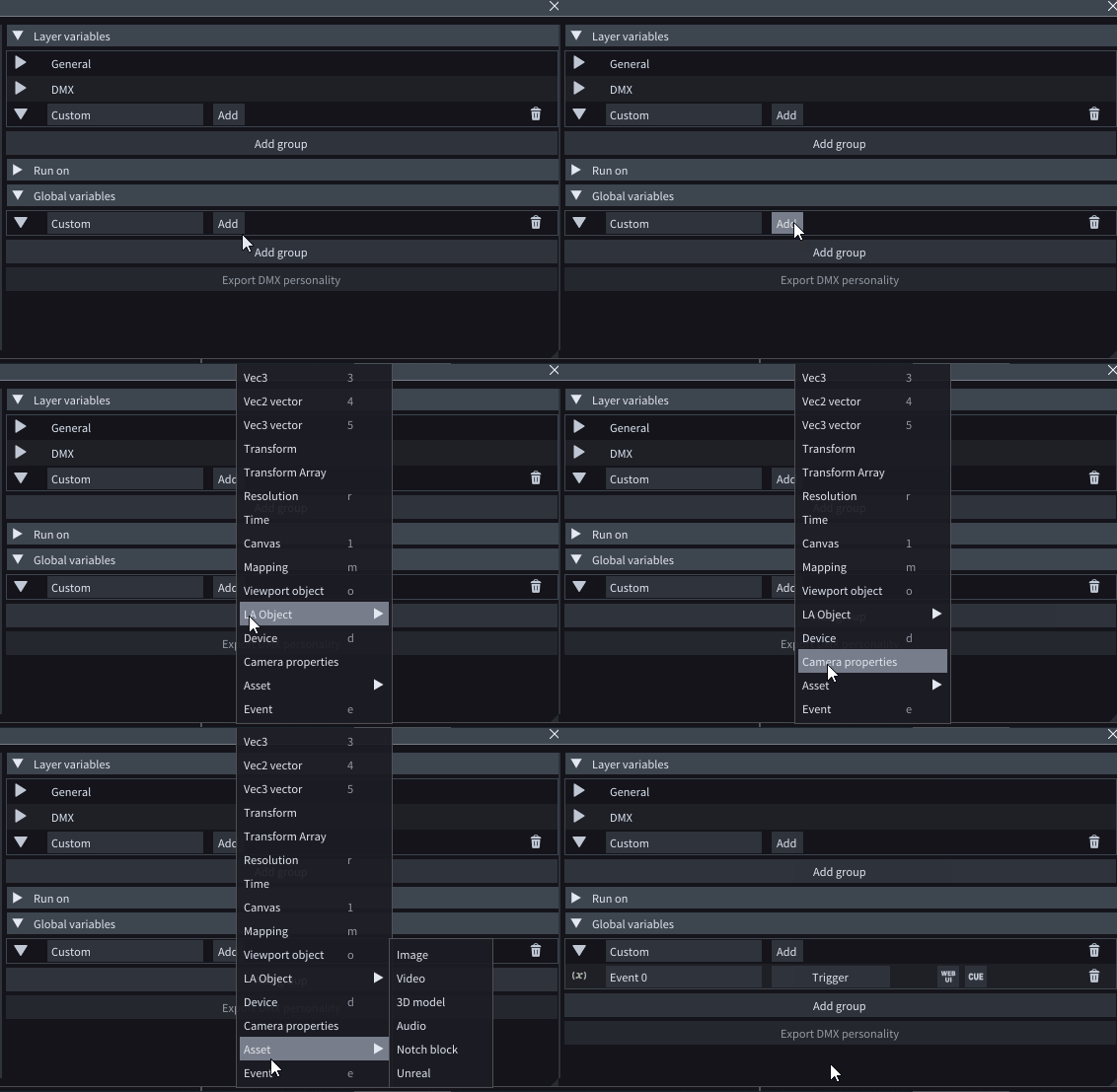
To add a **Global cue**, you first need to add a *global variable* of type **Event**.
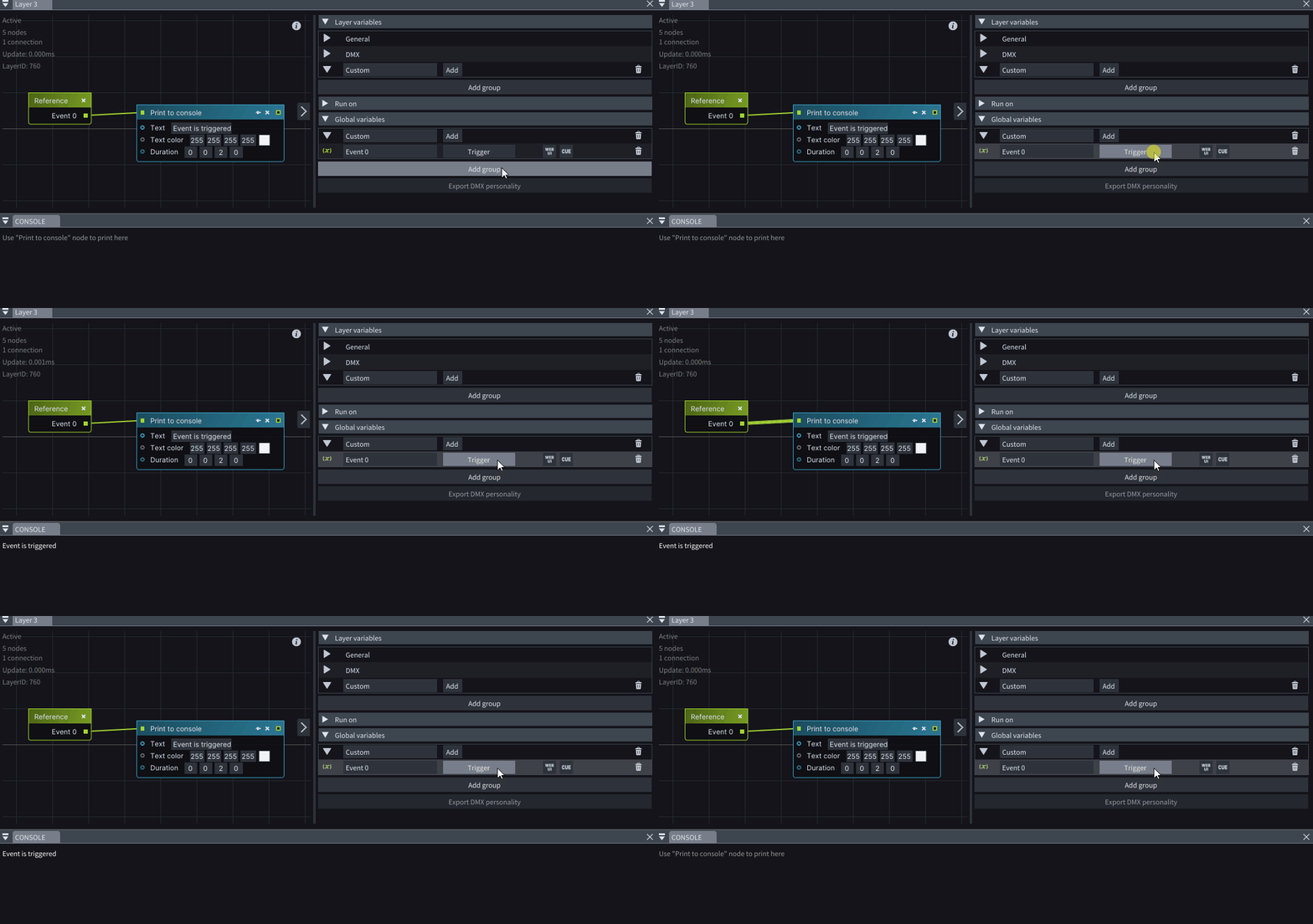
Using the *Layer Layouts*, you can program the desired action you want to occur upon a trigger*.* You can do this by creating a *Getter node* from the *Event* variable which triggers a lifeline output anytime the **Event** variable is triggered.
{% hint style="info" %}
**Good to know:** You can learn more about *Getter nodes* in the [Variable Management](/layers-and-layouts/layer-layouts/variables/variable-management.md) chapter.
{% endhint %}
{% hint style="info" %}
**Good to know:** The [*Set fade*](/layers-and-layouts/stock-layer-templates/control-layer-templates/set-fade.md) layer template changes the fade of a video output, section, or layer when the corresponding **Event** variable is triggered.
{% endhint %}
### Global Cue
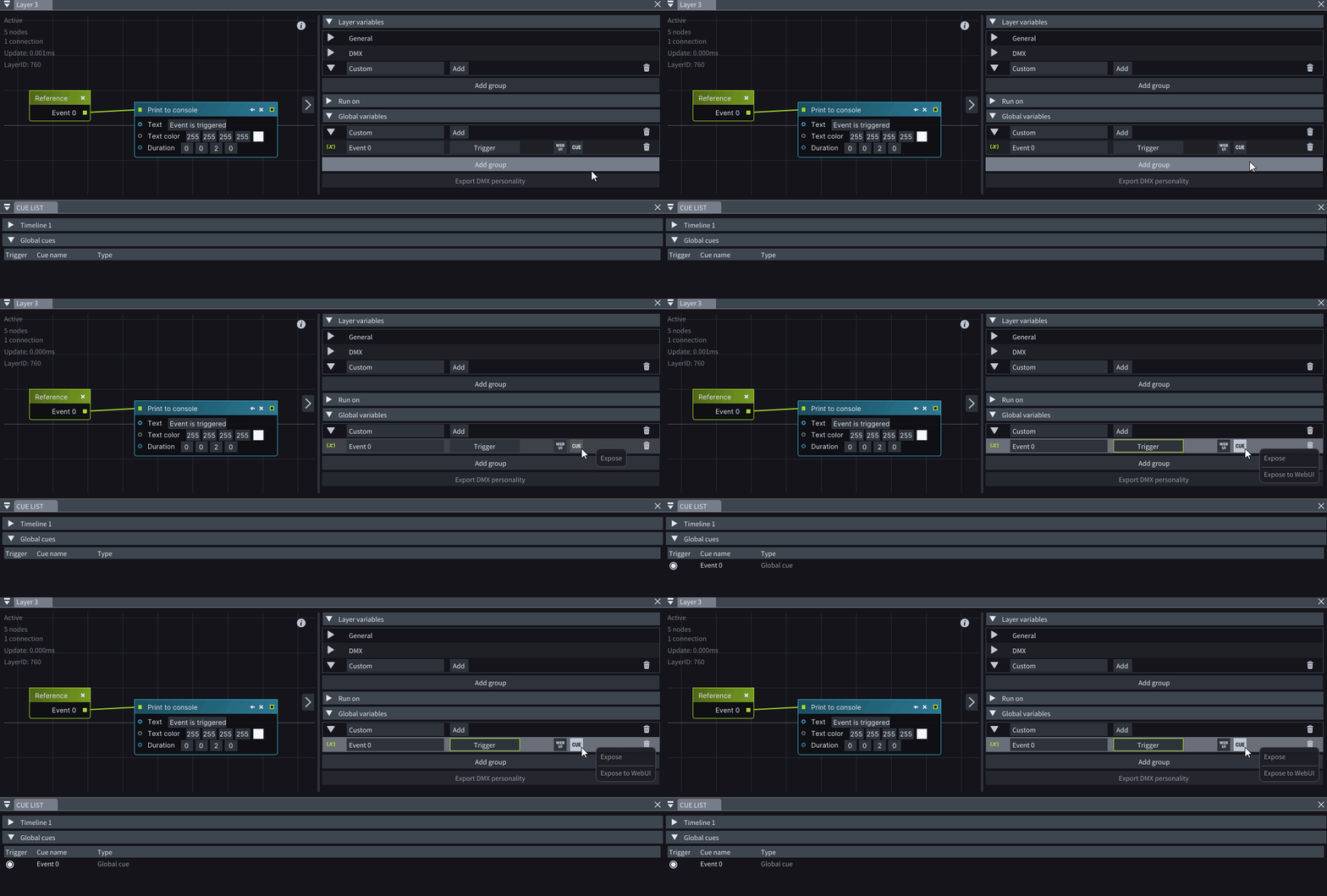
To be able to see an **Event** variable as a *Global Cue* in the *Cue list* window, click on the  control icon to enable it.
From this point forward, clicking the **Trigger** button of the *Global cue* in the Cue List window will trigger the *Event*, regardless of where the *Playhead* is in the *Timeline*, as long as the *Layer* where the logic is programmed is active at the time of clicking.