> For the complete documentation index, see [llms.txt](https://docs.lightact.com/llms.txt). Markdown versions of documentation pages are available by appending `.md` to page URLs; this page is available as [Markdown](https://docs.lightact.com/miscellaneous/webui-setup.md).
# WebUI Setup
{% hint style="warning" %}
WebUI feature is available for LightAct **server license** only.
{% endhint %}
## Overview
WebUI enables you to setup **custom user interface** and **control LightAct** from any device's browser connected to the same network as LightAct.
## Setup
First look up your IP address in **Command Prompt.** Open Command Prompt **as administrator** and type **ipconfig.** Copy your IPv4 adress.
Open **http-server.exe** and look up your port number. You can find it under *C:\WebUI 4\dist\http-server.exe*
{% hint style="info" %}
**Good to know:** If you cannot fine **http-server.exe** file on your server, feel free to contact us at .
{% endhint %}
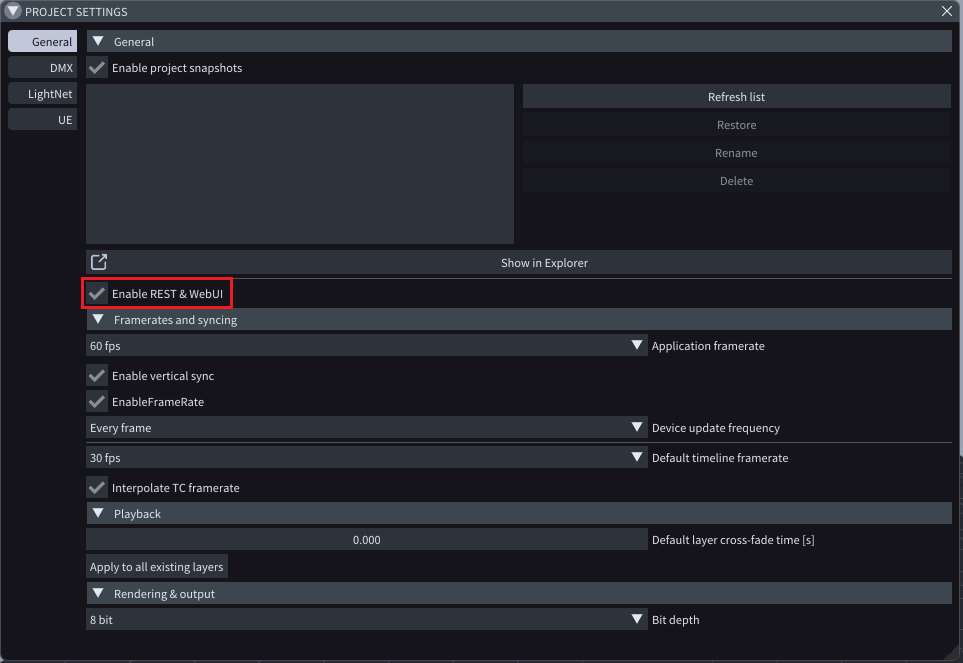
Open LightAct, go to Project Settings, and under General, enable **Enable** **REST & WebUI.**
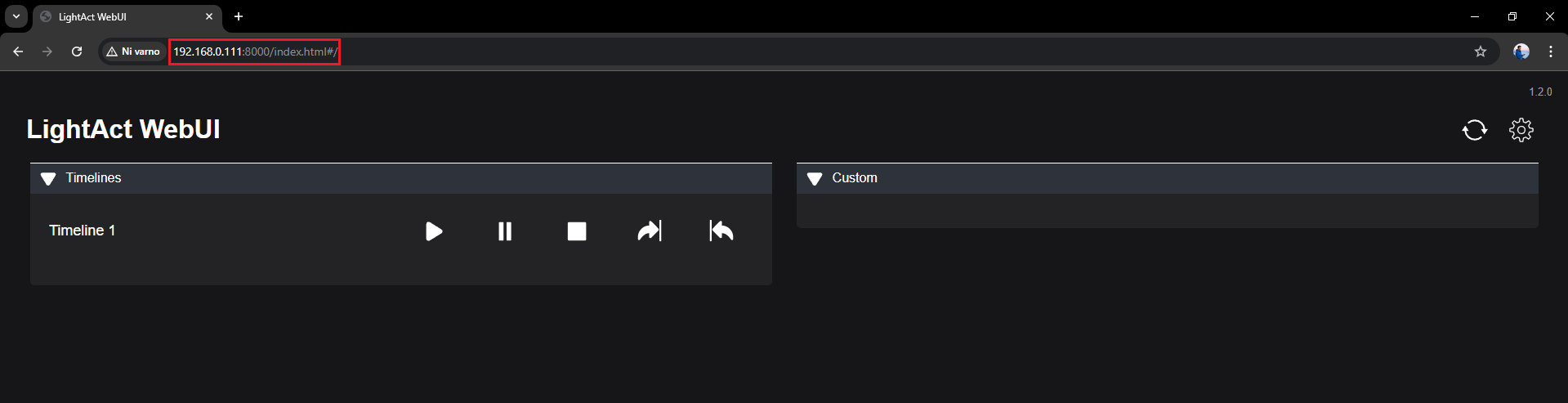
Open any web browser and type your **IP** and **Port**, followed by **/index.html,** for example *"192.168.0.111:8000/index.html".*
{% hint style="warning" %}
If WebUI doesn't receive data, uncheck **Enable REST & WebUI** button and then check it again. Ensure that the device you are trying to access WebUI on is in the same network on which LightAct is running.
{% endhint %}
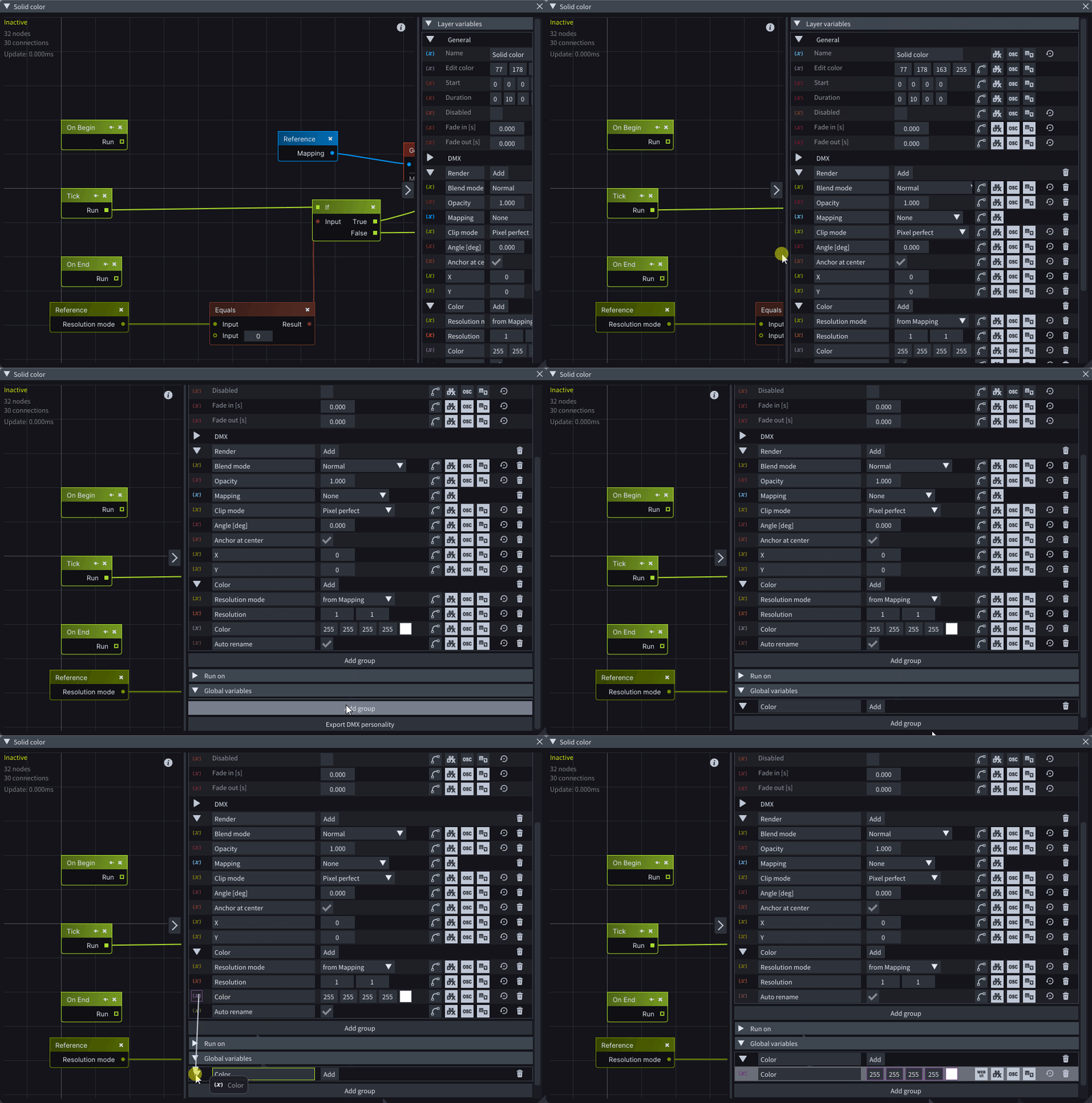
You can add custom variables by dragging a **Local variable** to a [**Global variable**](https://docs.lightact.com/layers-and-layouts/variables#global-variables) **group** or by directly adding a **Global variable**.
Make sure to expand the right side window enough to see **WebUI icon**. Click on it to enable the variable in WebUI.
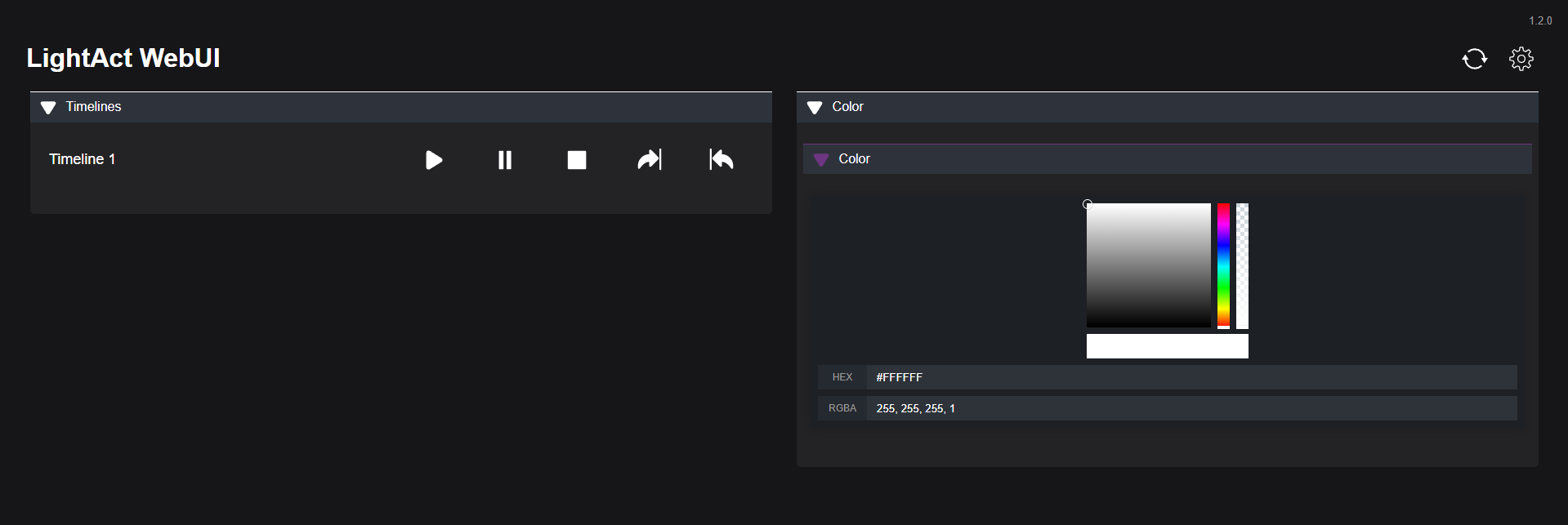
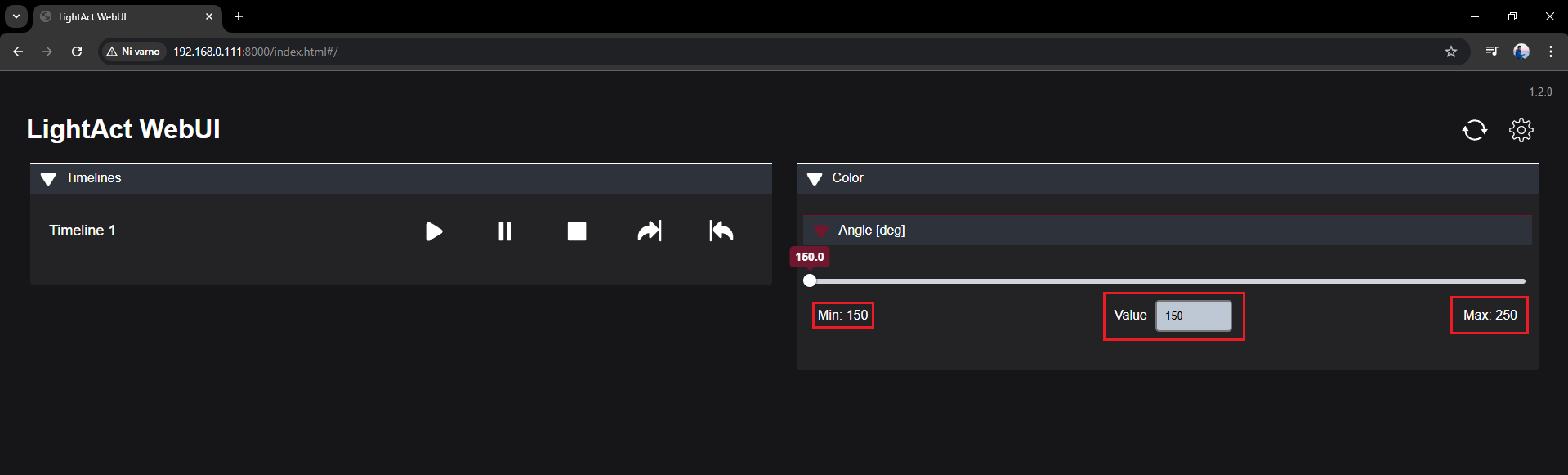
Successful configuration should look something like this.
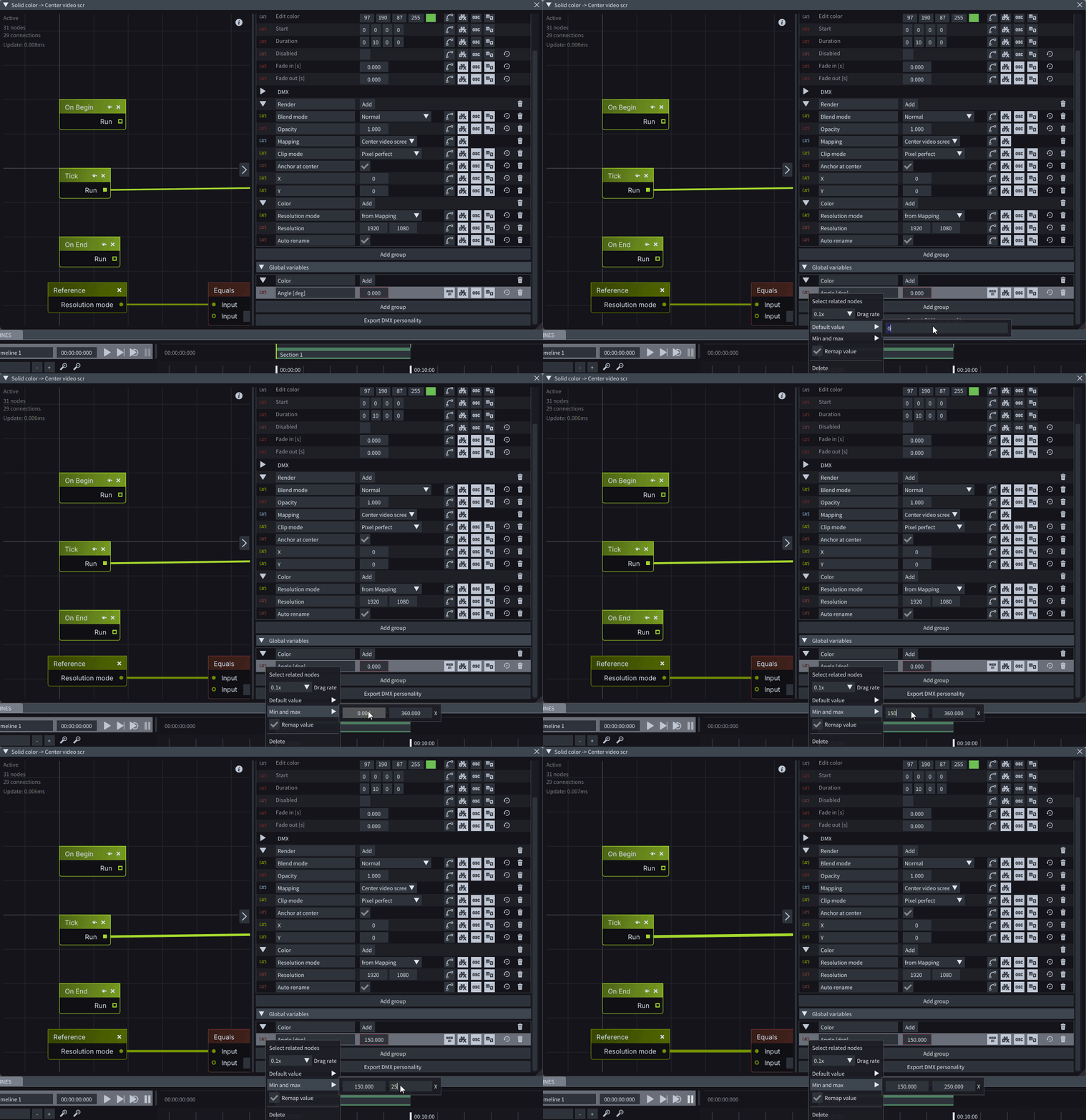
You can also set the **Default value** and **Min and max** value.
All global variables, that have the **WebUI** button enabled should be visible in WebUI.