> For the complete documentation index, see [llms.txt](https://docs.lightact.com/llms.txt). Markdown versions of documentation pages are available by appending `.md` to page URLs; this page is available as [Markdown](https://docs.lightact.com/lightnet/establish-lightnet-cluster.md).
# Establish LightNet Cluster
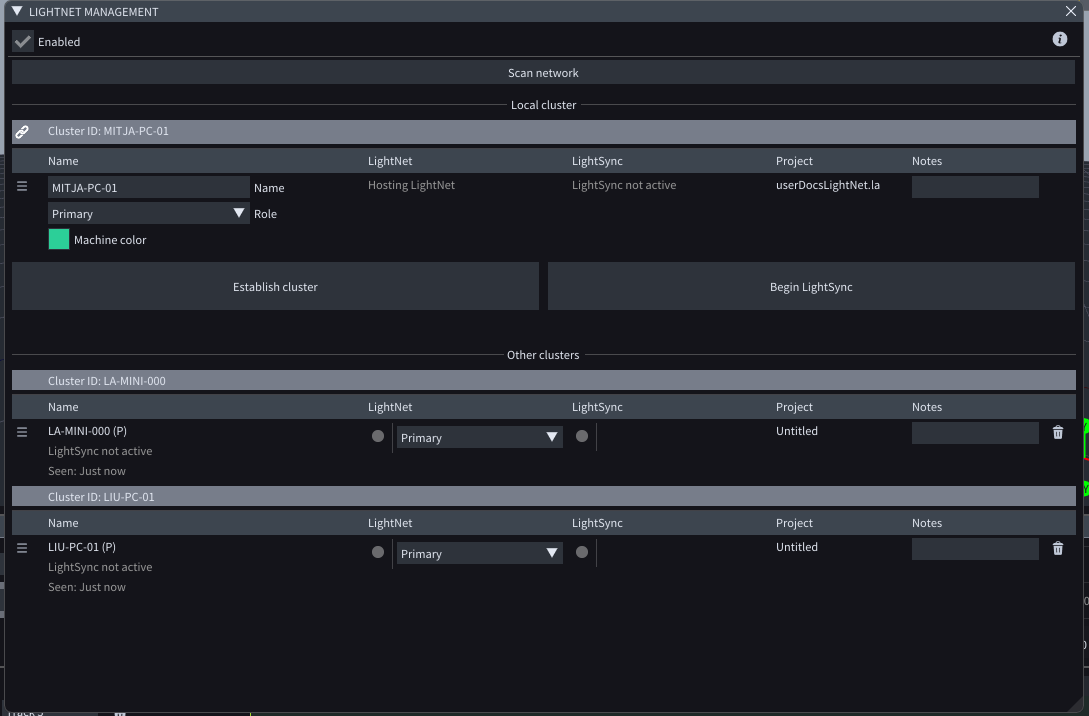
When the other machines are found, your LightNet Management window will most likely look similar to this.
{% hint style="info" %}
**Good to know**: Establishing a cluster succesfully means that all 3 communication channels (LightNet, LightSync and Asset transfer) are working and that all servers have the the same project file open.
{% endhint %}
In order to Establish cluster there are just a few steps that you need to do:
1. Invite the machines into Primary's cluster
2. Assign correct roles to them
3. Establish the cluster
## Inviting a machine into a cluster
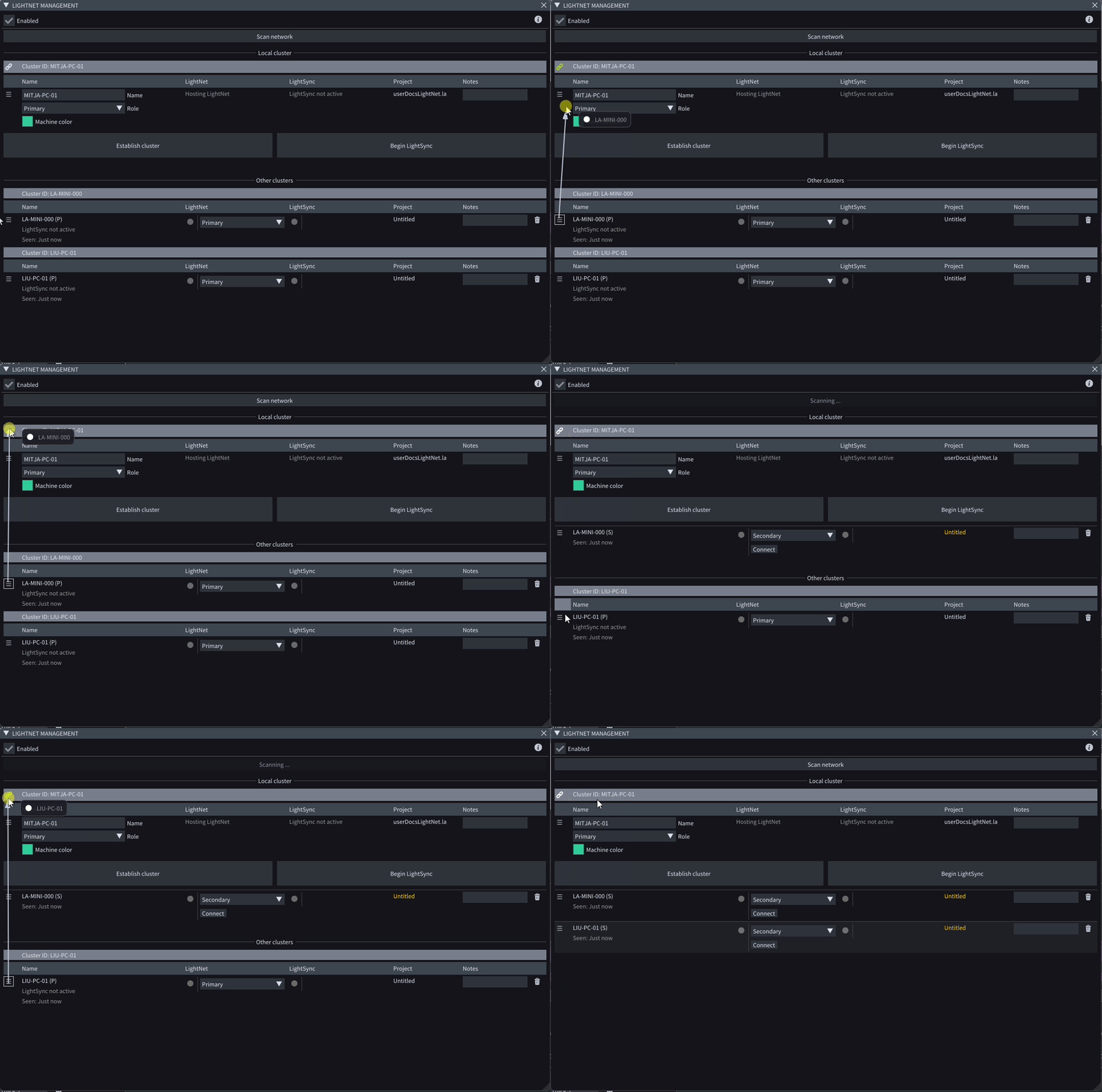
The quickest way to invite a machine into Primary's cluster is simply to drag it into it. This will also automatically assign it a Secondary role.
## Assigning a role to every machine
Use this dropdown to assign a role to a particular machine.
{% hint style="info" %}
**Good to know**: assigning Primary role to a machine in your cluster will automatically remove this machine from your cluster. There can only be one Primary in a cluster.
{% endhint %}
## Establishing a Cluster
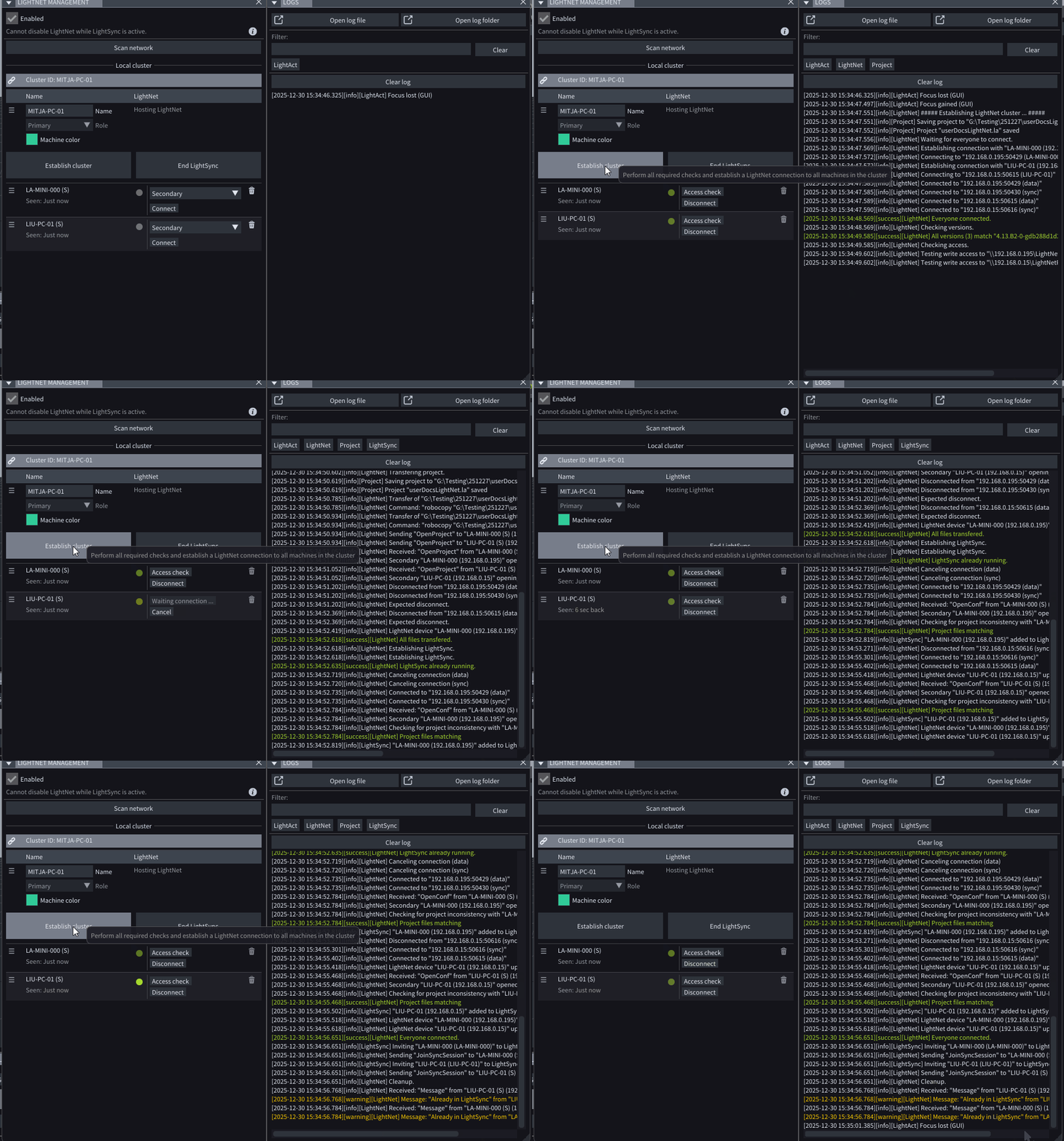
The quickest way to establish a cluster is to simply click on the Establish Cluster button. What this will do in the background is:
1. Save the project file on the Primary
2. Establish a LightNet connection with all the machines in the cluster
3. Check if all the machines have the same version of LightAct.
4. Check if Primary has access to the LightNetProjects folders on all the machines
5. Transfer project file to all the machines
6. Open the project file on all the machines
7. Establish LightSync
8. Check if Project files match on all the machines
{% hint style="warning" %}
**I**f any of the above steps fails, your cluster won't work as intended.
{% endhint %}
{% hint style="info" %}
**Good to know:** the most common failed step i number 4 (Access to LightNetProjects folders).
{% endhint %}
### LightNet connection
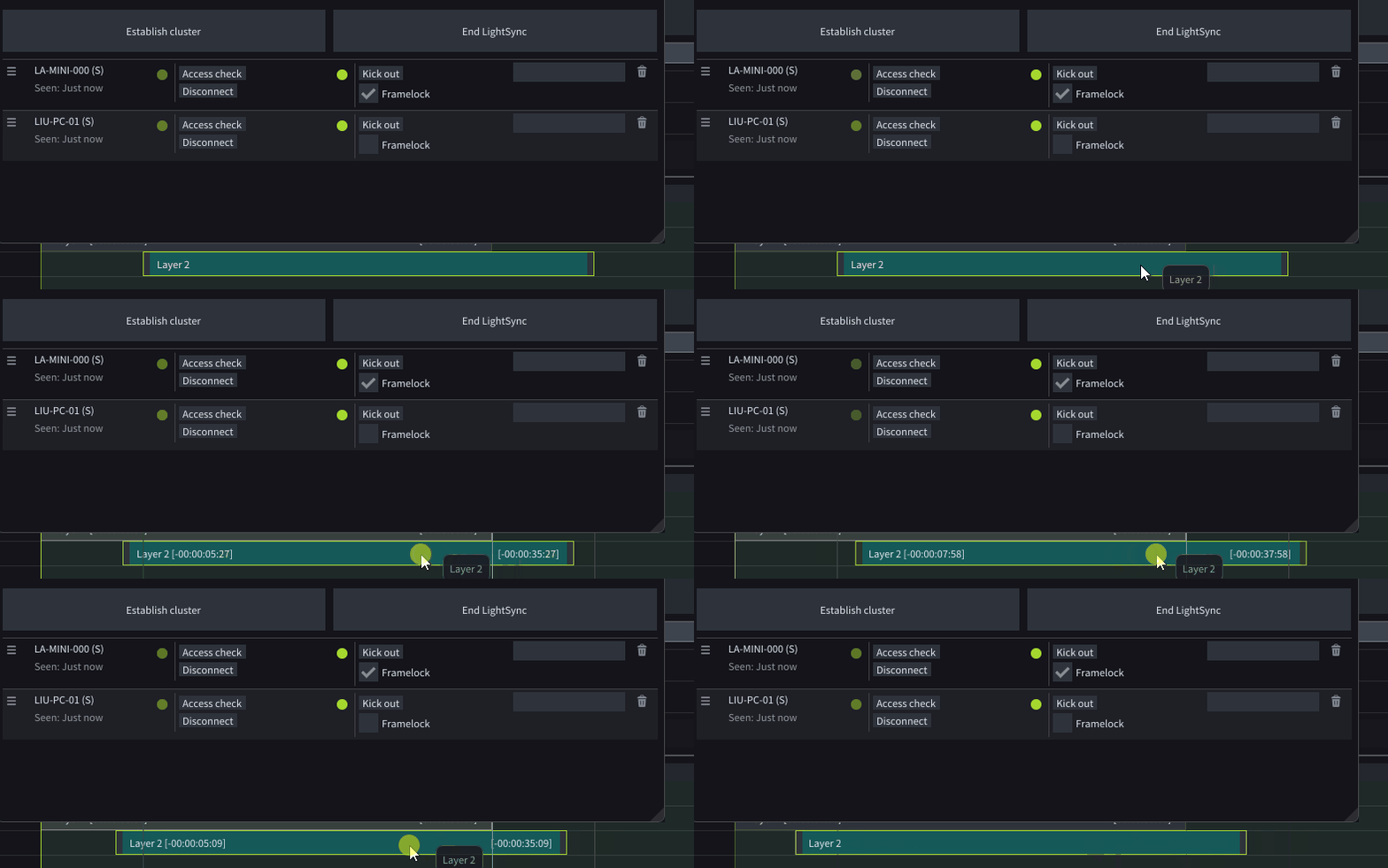
When you have a server established, you'll see these green circular lights blinking every now and then. These lights blink whenever there is LightNet message (real-time updates across the cluster).
If you move drag an object, for example, these lights will blink much faster.
What also affect the frequency of LightNet messages are **Real-time edit updates** and **Heartbeat frequency** dropdowns in **Project settings** window in **LightNet** tab.
#### Manually managing LightNet connection
It is possible to manually manage LightNet connection with these 2 buttons:
* **Access check**: checks if Primary has write access to the LightNetProjects folder on this machine
* **Connect/Disconnect**: manages LightNet connection with this machine.
{% hint style="warning" %}
If LightNet connection breaks for any reason, it might be worthwhile to analyse why it happened in the first place.
{% endhint %}
## Multi-user
LightAct allows users to modify project on Primary, all Secondaries and all Editor machines. Everything that you change on any of these machines should be propagated first to the Primary and then to the entire Cluster in real-time.
{% hint style="warning" %}
Even though we don't prohibit changes made in Secondary servers, we **recommend** the users use only Primary and Editor machines.
This is also the only workflow that we officially support.
{% endhint %}