> For the complete documentation index, see [llms.txt](https://docs.lightact.com/llms.txt). Markdown versions of documentation pages are available by appending `.md` to page URLs; this page is available as [Markdown](https://docs.lightact.com/quick-start/user-interface.md).
# User Interface
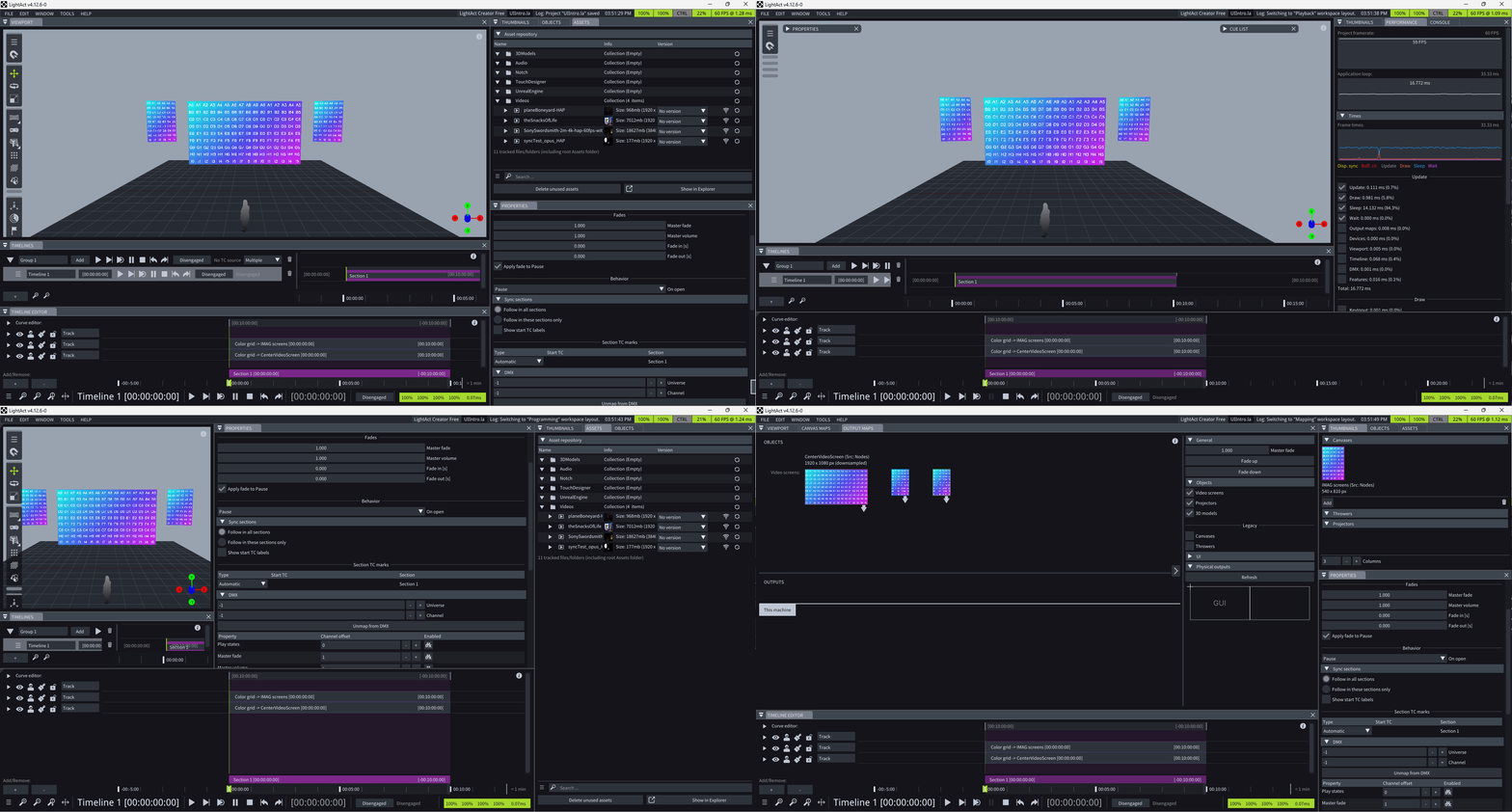
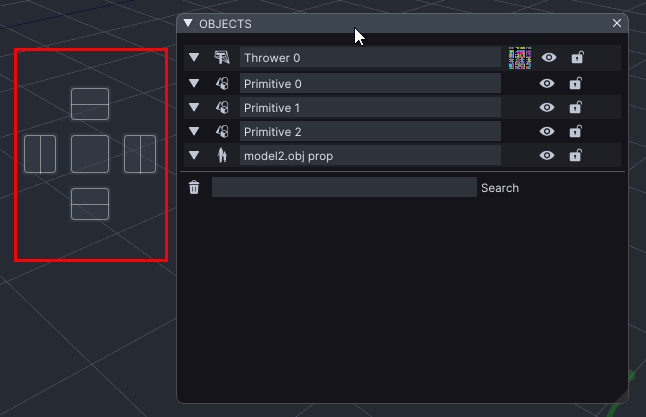
LightAct's user interface is flexible and you can easily adjust it as you want by dragging windows around and docking them where you want.
When dragging windows around you will see *docking handles*. They tell you where the window will be docked to, if you drop it on the handle.
Feel free to re-arrange your windows the way you like.
### **Workspaces**
*Workspace* is a saved window arrangement.
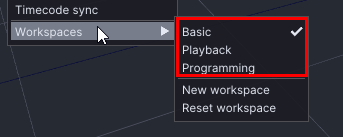
LightAct comes with 3 pre-defined *workspaces*:
* Basic
* Playback
* Programming
You can also create a new *custom workspace.*
{% hint style="info" %}
**Good to know:** A workspace is saved whenever you close the program or switch to another *workspace*.
{% endhint %}