> For the complete documentation index, see [llms.txt](https://docs.lightact.com/llms.txt). Markdown versions of documentation pages are available by appending `.md` to page URLs; this page is available as [Markdown](https://docs.lightact.com/output-setup/output-maps.md).
# Output Maps
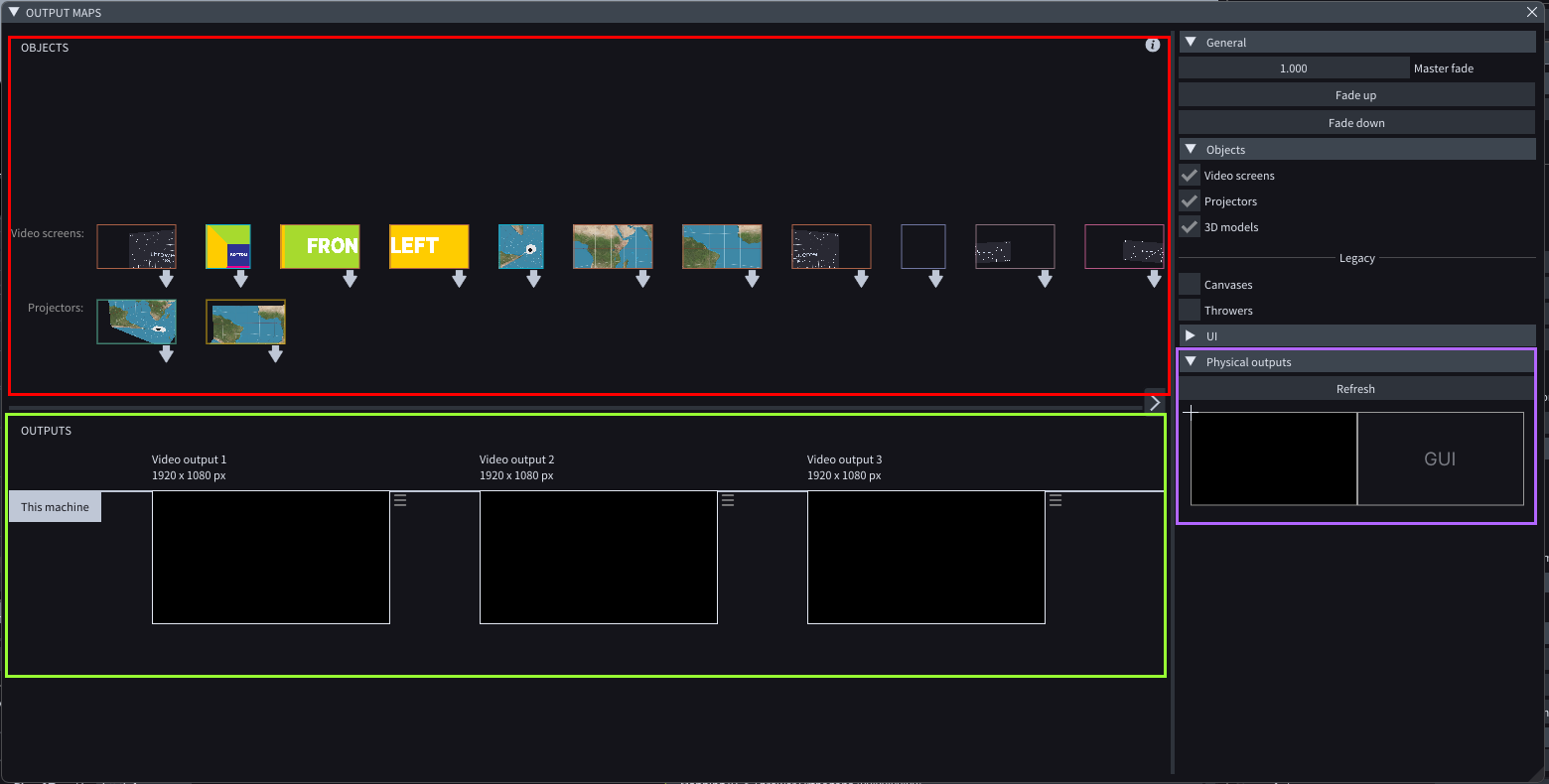
**Output Maps** is where you set up how the content from *Viewport objects*, such as *Video screens* or *Projectors*, is going to get pushed out through *Physical outputs* on the GPU. In the *Output Maps* window, there are 3 distinct areas:
* **Viewport objects** (in red rectangle): here you will see all the Viewport objects that are selected in the Properties on the right.
* **Virtual outputs** (in green rectangle): here you will see all your Virtual outputs. They may or may not yet be mapped to a Physical output.
* **Physical outputs** (in purple rectangle): here you will see all the detected Physical outputs on your machine or machines if you are in a multi-machine environment.
## Process
The set up process is divided into 3 steps.
1. **Create** your Virtual outputs.
2. **Map**:
1. *Objects to Virtual outputs* and then
2. *Virtual outputs to Physical outputs*. This tells LightAct where you want each Virtual output to go.
3. **Enable** the Virtual outputs that you want to output. This enables that output.
### Creating Virtual outputs
There are several ways to create a *Virtual output*.
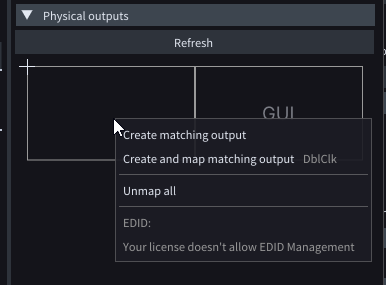
If you right click on a detected Physical output, you are going to get this menu:
* **Create matching output** creates a Virtual output with the same resolution as the detected Physical output.
* **Create and map matching output** creates a Virtual output with the same resolution as the detected Physical output and also maps it to that Physical output.
{% hint style="info" %}
**Good to know**: if you double click on any of the detected Physical outputs, you'll create a matching Virtual output.
{% endhint %}
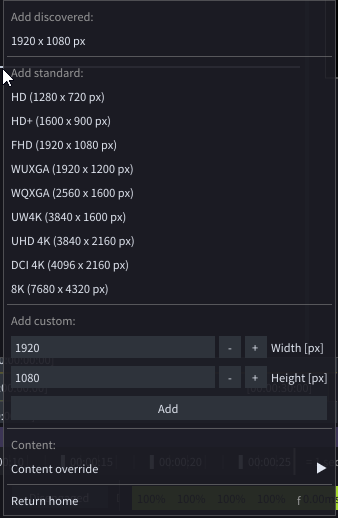
Alternatively, if you right click in the *Outputs* area, you'll get this menu where you can create a Virtual output of different resolutions.
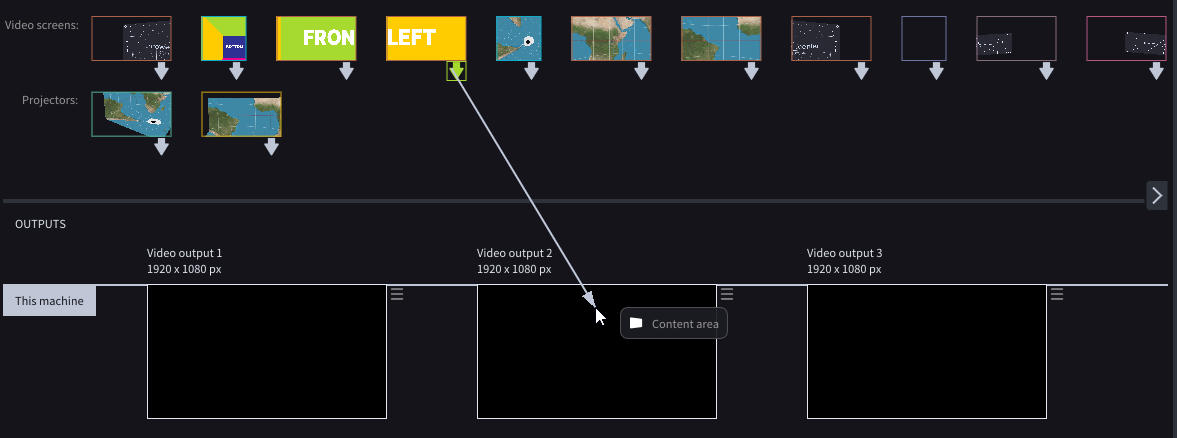
### Mapping content from Viewport objects to Virtual Outputs
The process is the same as in [Canvas Maps](/content-mapping/canvas-mapping.md), so refer to that article.
{% hint style="info" %}
**Good to know**: in Output Maps you can also create a Mapping layout, just the same as in Canvas Maps.
{% endhint %}
### Mapping Virtual outputs to Physical outputs
If you:
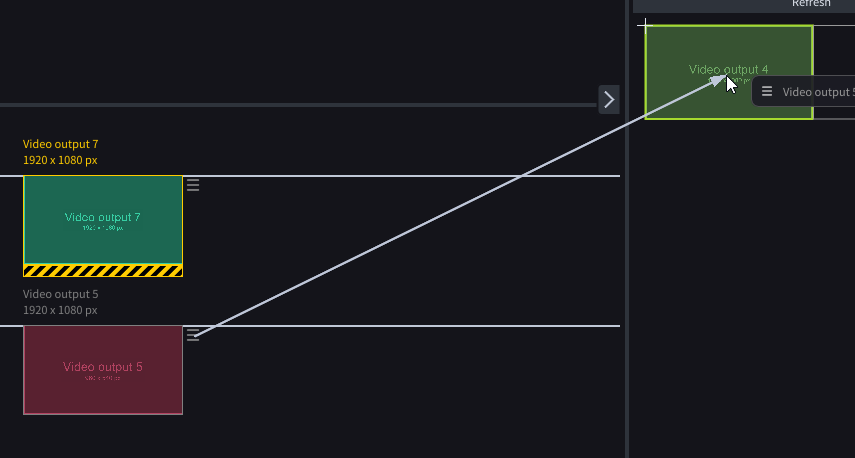
* **drag** from the Properties icon of a Virtual output to a Physical output, you are going to map it there.
* **Shift + drag** will map it and enable it at the same time.
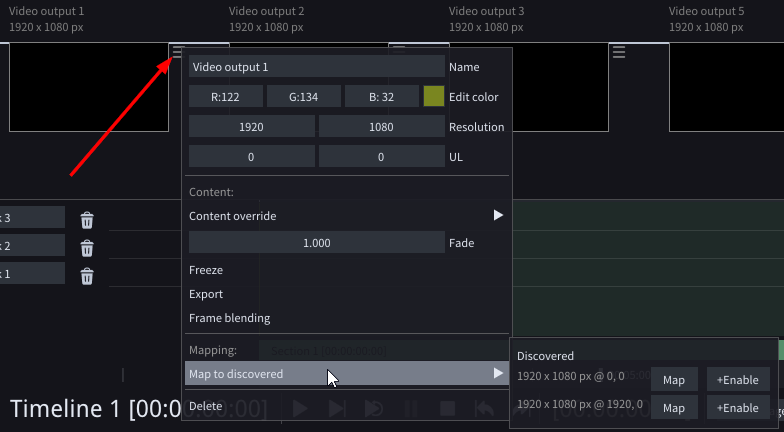
Alternatively, if you left click on the Properties icon near the top right corner of every Virtual output, you'll get this menu. In the Mapping section, you can map this Virtual output to one of the discovered Physical outputs.
### Enable-ing Virtual outputs
When you enable a Virtual output, a new full screen window will get created that will cover that output in its entirety.
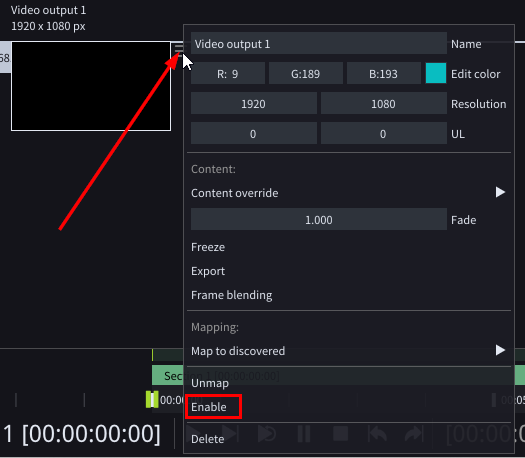
To enable a Virtual output, click on the Properties icon and then click on Enable.
## Shortcuts
There are a couple of shortcuts that make your workflow faster:
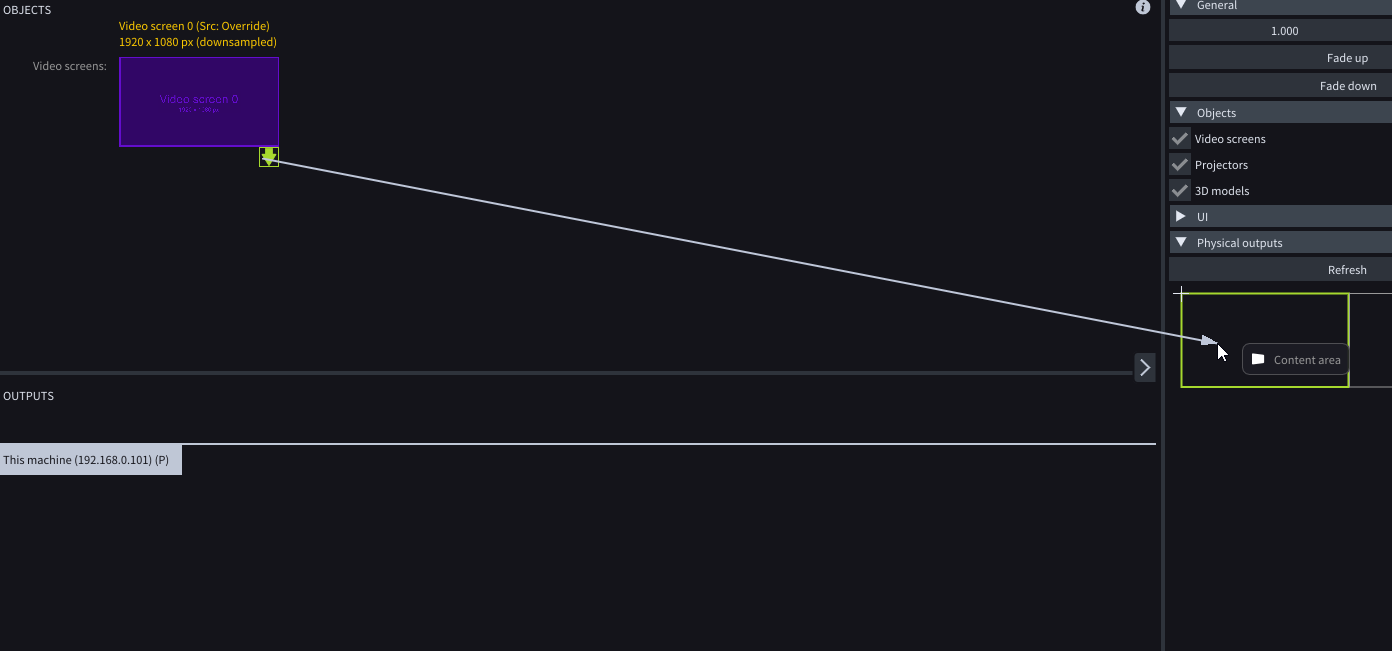
* **Dragging** as shown above will create a Virtual output with the same resolution as the Source area and map it to that Physical output.
* **Shift-dragging** does the same thing, except that it also enables the Virtual output in the end.