# Launching LightAct with Arguments

LightAct can be launched with predefined command line arguments. Depending on the argument, LightAct will start in a different mode which may speed up your workflow or give you better insight on the program.

LightAct offers three types of arguments: standalone, advanced and custom arguments

### Standalone arguments

To launch LightAct with a standalone argument, the correct formatting would be *"C:\Program Files\Lightact\Lightact4\Lightact4.exe" -argument.*

<table><thead><tr><th width="159">Command</th><th>Description</th></tr></thead><tbody><tr><td><strong>-log</strong></td><td>Extensive logging. When you are in this mode, in the Log Window, you will notice extended messages for Iris cameras, down-sampling, up-sampling and so on.</td></tr><tr><td><strong>-developer</strong></td><td>Gives you an insight of developer information such as object IDs, down-sampled resolutions and more.</td></tr><tr><td><strong>-most_recent</strong></td><td>Opens your most recent project.</td></tr><tr><td><strong>-clear</strong></td><td>Clears the cache folder.</td></tr><tr><td><strong>-secondary</strong></td><td>Gives the machine a Secondary role in LightNet.</td></tr><tr><td><strong>-lightnet</strong></td><td>Sets the LightNet checkbox to ON.</td></tr></tbody></table>

{% hint style="info" %}
**Good to know**: For example, to launch LightAct in the extensive logging mode, you would type *"C:\Program Files\Lightact\Lightact4\Lightact4.exe" -log*.
{% endhint %}

### Advanced arguments

To launch LightAct with advanced arguments, the correct formatting would be *"C:\Program Files\Lightact\Lightact4\Lightact4.exe" -argument "\<advanced\_arguments>".*

<table><thead><tr><th width="401">Command</th><th>Description</th></tr></thead><tbody><tr><td><strong>-project "&#x3C;filepath>"</strong></td><td>Lets you decide which project to open upon launch.</td></tr><tr><td><strong>-window "&#x3C;poz.x> &#x3C;poz.y>"</strong></td><td>Gives you the liberty to determine the position of the program window upon launch.</td></tr><tr><td><strong>-window "&#x3C;poz.x> &#x3C;poz.y> &#x3C;size.x> &#x3C;size.y>"</strong></td><td>Gives you the liberty to determine the position and size of the program window upon launch.</td></tr><tr><td><strong>-nic "&#x3C;ip> &#x3C;port>"</strong></td><td>Sets the default NIC and data port for the application. If the NIC is not valid, a default NIC is set.</td></tr></tbody></table>

{% hint style="info" %}
**Good to know**: For example, to launch LightAct in *nic* mode, you would type *"C:\Program Files\Lightact\Lightact4\Lightact4.exe" -nic "192.169.0.101 12345".*
{% endhint %}

### Custom launch arguments

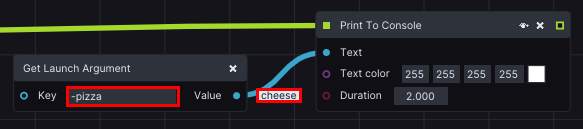
In LightAct, you can also create your own custom launch arguments which you can then read through the *Get Launch Argument* node. The string after the dash is considered the key, and the string in the quotation marks is considered the value.

For example, if you launch LightAct with the formatting *"C:\Program Files\Lightact\Lightact4\Lightact4.exe" -pizza "cheese", -pizza* is your *key* and *cheese* is your *value*.

<figure><img src="https://3312042618-files.gitbook.io/~/files/v0/b/gitbook-x-prod.appspot.com/o/spaces%2F9sVaJpWJhPbmscipukhh%2Fuploads%2Fgit-blob-f69fb80f613cf082073860457d433332b658743e%2FGetLaunchArgument1.png?alt=media" alt=""><figcaption></figcaption></figure>