> For the complete documentation index, see [llms.txt](https://docs.lightact.com/llms.txt). Markdown versions of documentation pages are available by appending `.md` to page URLs; this page is available as [Markdown](https://docs.lightact.com/video-playback/video-playback-troubleshooting.md).
# Video playback troubleshooting
## General stuttering and missed frames
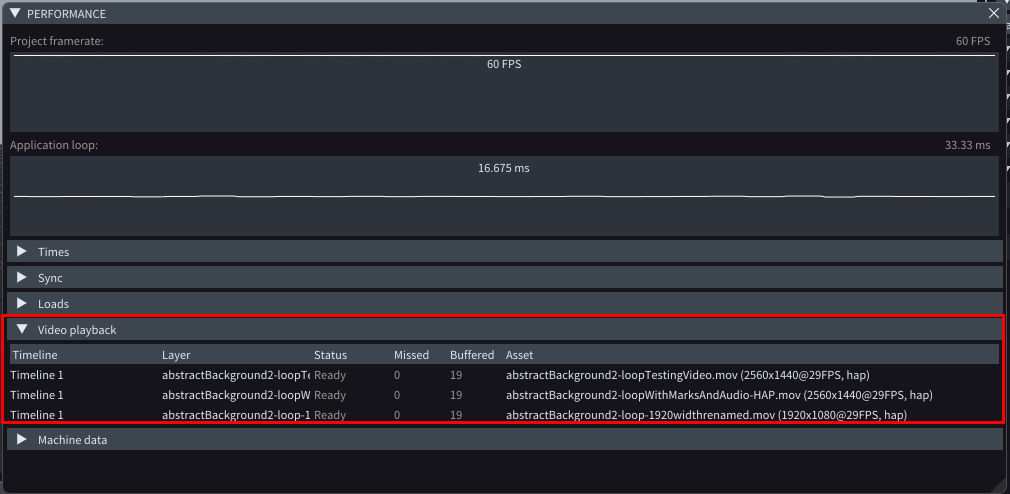
The best place to start investigating what's happening with your video playback is the **Performance** window where you will find a **Video playback** section.
{% hint style="info" %}
**Good to know:** if you see **Missed frames** continuously increasing it means Play Video nodes in your layers cannot read, decode and render the frames fast enough.
{% endhint %}
{% hint style="info" %}
**Good to know:** if Missed frames are not increasing yet you still see stuttering on the outputs, the culprit might be something else.
{% endhint %}
If Missed frames are continuously increasing there are usually 2 possible reasons for that:
1. Insufficient disk read speed
2. Insufficient CPU speed.
### Insufficient disk read speed
This can happen especially with codecs that produce large filesizes, such as HAP, NotchLC or image sequences.
{% hint style="info" %}
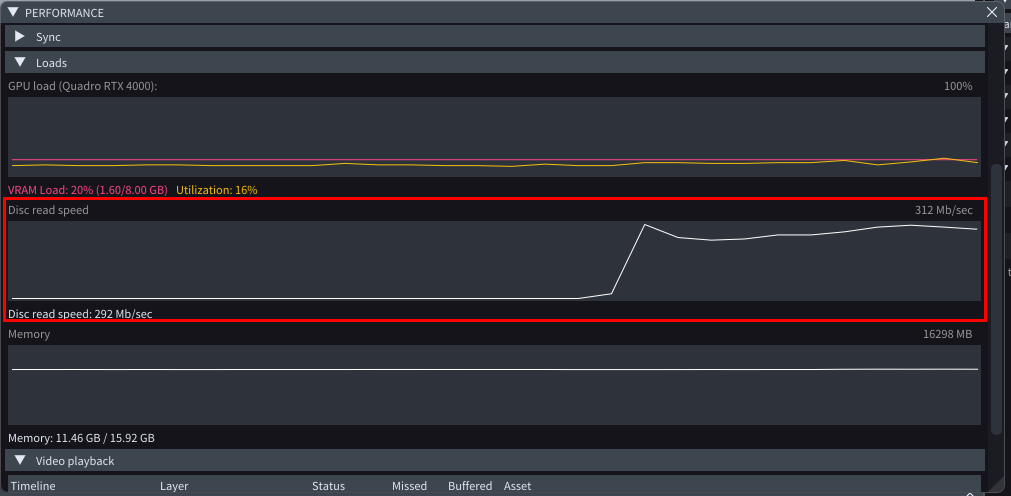
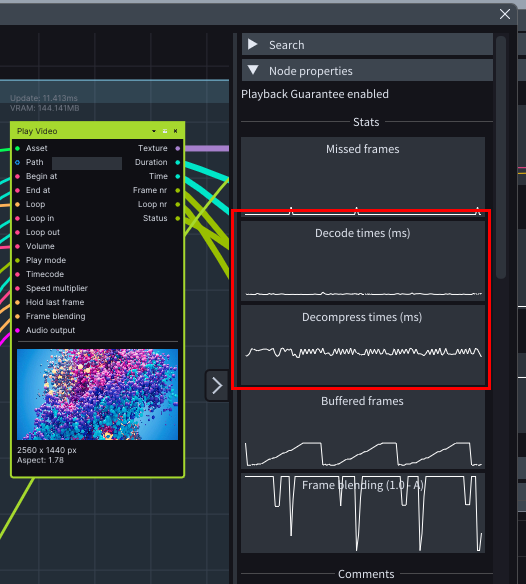
**Good to know**: if Decode times and Decompress times are pretty much low and you still experience general stuttering and missed frames, it means it is likely that the reason is the insufficient disk read speed.
{% endhint %}
In **Performance** window you can see the current **Disk read speed**.
{% hint style="warning" %}
Softwares like Google Drive or Desktop every now and then consume a lot of disk read bandwidth, which prevents LightAct to be able to read the frames with high enough speed. It is therefore recommended to disable these software packages on your server.
{% endhint %}
### Insufficient decode speed
LightAct might be able to read the frames fast enough from the drive, but if the CPU is overloaded, LightAct won't be able to decode the frame in time to render it.
{% hint style="info" %}
**Good to know:** every codec requires the CPU to do part of the decoding, even HAP and NotchLC. H.264 requires far more CPU resources than HAP or NotchLC.
{% endhint %}
If disk read disk speed is low, yet you see Missed frames in the Performance window, check the Decode and Decompress times in the graphs of the Play video node. If they are high, it might mean the bottleneck is the CPU.
### Insufficient framerate
If the framerate of the video file is higher than the current framerate of the application, you will get Missed frames. The only remedy to this situation is to increase the framerate of the application.
## Blinking/flickering videos with alpha channel
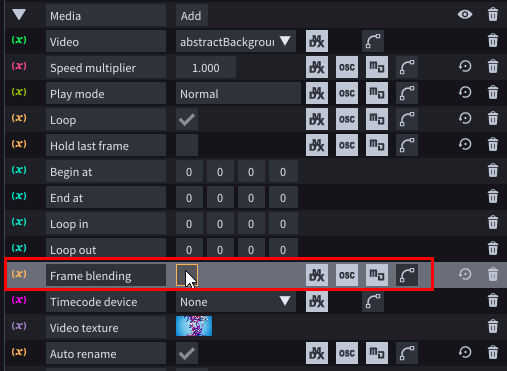
If you have a video file with alpha channel you should disable Frame blending boolean. If it's enabled and the video contains alpha channel (with semi-transparent pixels) you might see some flickering or blinking.