> For the complete documentation index, see [llms.txt](https://docs.lightact.com/llms.txt). Markdown versions of documentation pages are available by appending `.md` to page URLs; this page is available as [Markdown](https://docs.lightact.com/layers-and-layouts/layer-layouts/variables/variable-management.md).
# Variable management
{% hint style="info" %}
**Good to know:** Variable management is the same for layer and global variables alike.
{% endhint %}
## Create Variable
You can create a variable by clicking on the **+** icon of the *Custom* variable group. Once you choose what information you would like your variable to hold by clicking on the correct menu entry, the variable will appear under the *Custom* variable group.
{% hint style="info" %}
**Good to know**: You can also create different variable groups by clicking on the **Add group** button at the bottom of the *Layer variables* or *Global variables* collapsible.
{% endhint %}
## Rearrange Variables
You can change the order of a variable within its Variable group by clicking on its icon and **dragging** it to the spot you want to place it.
You can also move a variable to another Variable group by **dragging** from its icon to the collapsible icon of the wanted *Variable* group.
## Delete Variable
You can delete a Variable by clicking on its **Trash icon** or by right-clicking on the **Variable icon** and selecting **Delete**.
## Adjusting Numeric Variables
Every numeric Variable has a setting to limit the minimum and maximum values. You can change it by left-clicking on the property and selecting **Min and max** setting. Similarly, the **drag rate** can be adjusted by left-clicking on the dropdown menu.
With some variables, you can toggle between appearances. You can do that by right-clicking on the Variable icon and selecting the appearance dropdown menu. You can change the Integer Variable to show *As Integer* or *As Dropdown*. This is useful for uniquely naming each integer. Likewise, Float Variables that are used for time and duration, have a similar dropdown menu and can appear *As Time* or *As Float.*
## Using Variables in Layouts
Drag a Variable on the layout either by dragging and holding shift or ctrl which skips the popup menu, or by dragging and dropping, which brings up a menu where you can select either a **Getter** or a **Setter** node.
### Getter and Setter Nodes
* **Getter** node is used to **get** the current value of a variable
* **Setter** node is used to **set** the current value of a variable
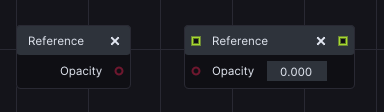
## Reference Node Replacement
In LightAct, you have the option to substitute the Getter or Setter node of a specific variable with the Getter or Setter node of another variable.
To do this, drag from the **Variable icon** of the desired variable to the *Reference node* you want to substitute.
{% hint style="info" %}
**Good to know:** This can be extremely useful when you copy Reference nodes of Layer variables to other layers in the project.
{% endhint %}