> For the complete documentation index, see [llms.txt](https://docs.lightact.com/llms.txt). Markdown versions of documentation pages are available by appending `.md` to page URLs; this page is available as [Markdown](https://docs.lightact.com/layers-and-layouts/curve-editor.md).
# Curve Editor
*Curve Editor* helps you manipulate the value of different variables over time.
## Enabling the Curve Editor
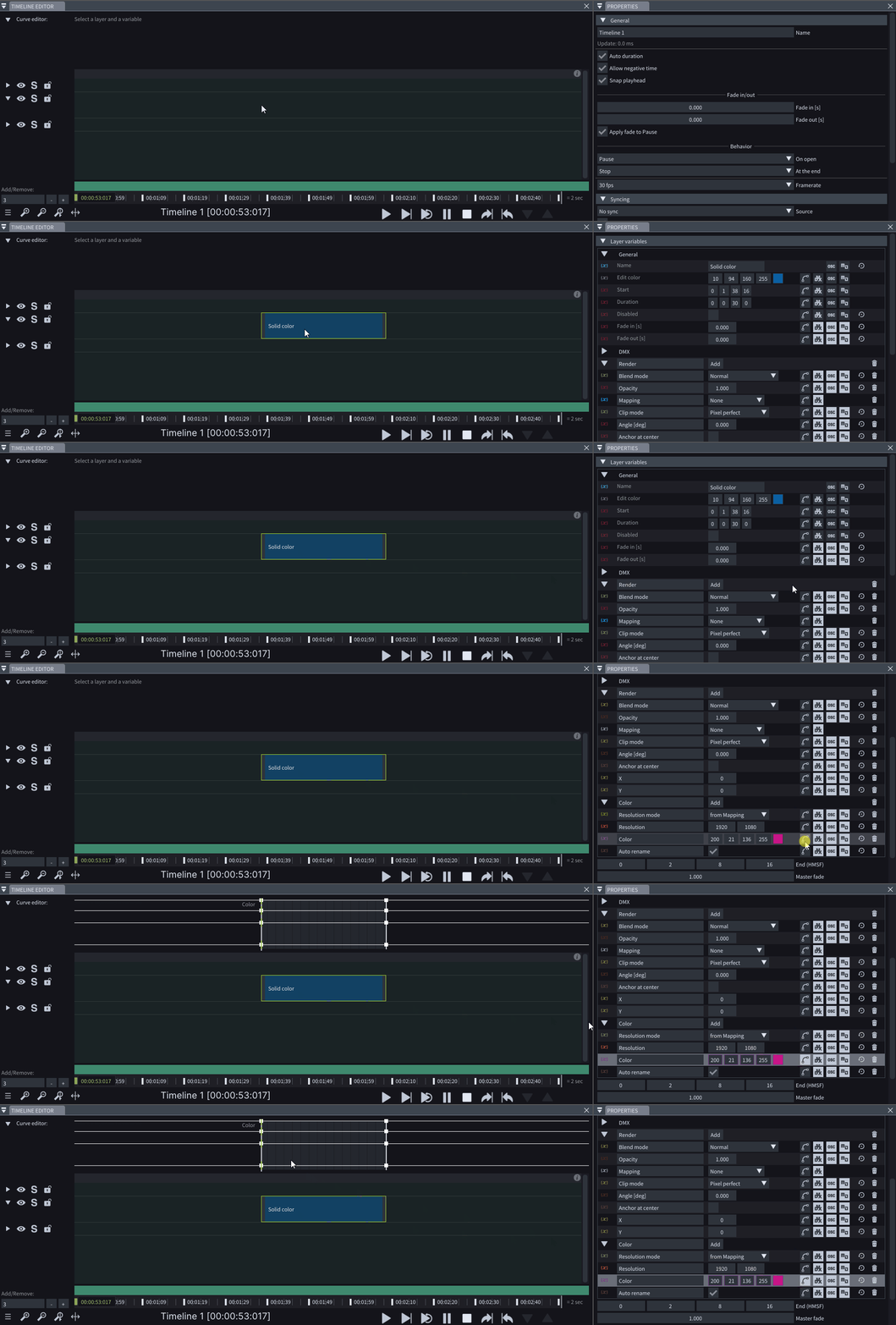
To access the *Curve Editor*, first select the desired *Layer* in the *Timeline Editor* and find the **Variable** you want to adjust in the *Variables* section of the *Properties* window.
Select one or multiple Variables and **click on**  next to it to enable the curve editing option in the *Curve Editor*.
To view and edit the curve of a specific enabled Variable, you can select it by **clicking on**  next to the Variable inside the *Properties* window.
## Manipulating Curves
### Adding Curve Point
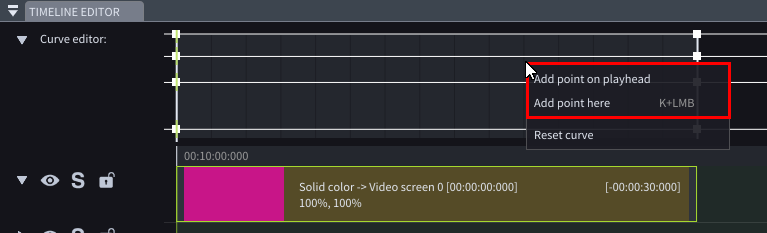
You can add curve points to the curves of a selected *Variable* by right-clicking in the *Curve Editor* and choosing:
* **Add point on playhead** option to add points where the *Playhead* is located, or
* **Add point here** option to add points at the current mouse location.
{% hint style="info" %}
**Good to know:** When editing a **Variable** with multiple components in the *Curve Editor*, you can choose to edit just one component (or curve) at a time. To do this, first select the curve by clicking on one of its **Points**, then **right-click** and choose one of the **Add point** options from the context menu.
{% endhint %}
### Manipulating Curve Points
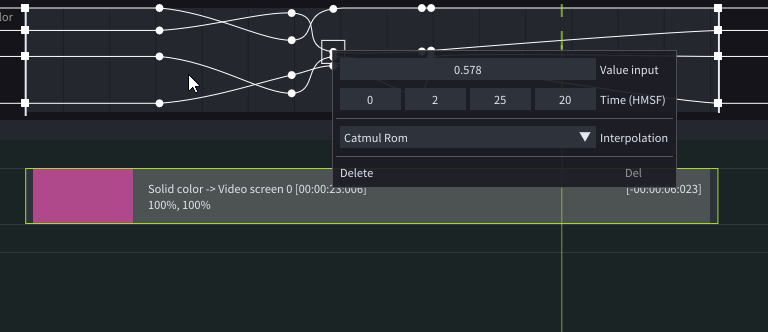
Each *Curve Point* contains unique information accessible by **right-clicking** on it within the *Curve Editor* window.
You can create and manipulate curve points by placing a *Playhead* on the desired location and changing the value of the *Variable* in the *Properties* window.
By selecting a *Curve point* in the *Curve Editor* you can move it vertically (**Scroll**) or horizontally (**Shift + Scroll**).
{% hint style="info" %}
**Good to know:** You can change the value of the Color variable in the *Curve Editor* by **selecting it from the color picker**.
{% endhint %}
### Deleting Curve Points
To delete single point from the Curve you can:
* select a point and choose **Delete** option from its right-click menu,
* select a point and **press Del** shortcut, or
* delete a point by **double-clicking** on it*.*
If you want to delete all user-added points use **Reset curve** in the right-click context menu of the Curve editor.