> For the complete documentation index, see [llms.txt](https://docs.lightact.com/llms.txt). Markdown versions of documentation pages are available by appending `.md` to page URLs; this page is available as [Markdown](https://docs.lightact.com/quick-start/user-interface/top-bar.md).

# Top Bar

LightAct's Top Bar is populated with a lot of useful information regarding your machines' and projects' state.

In this chapter, we will go over a few of the options it offers.

<figure><img src="https://3312042618-files.gitbook.io/~/files/v0/b/gitbook-x-prod.appspot.com/o/spaces%2F9sVaJpWJhPbmscipukhh%2Fuploads%2Fgit-blob-1659548e9198fa5d43b1ad0d6aa338b3a888a37a%2Fimage.png?alt=media" alt=""><figcaption></figcaption></figure>

## Master Fade

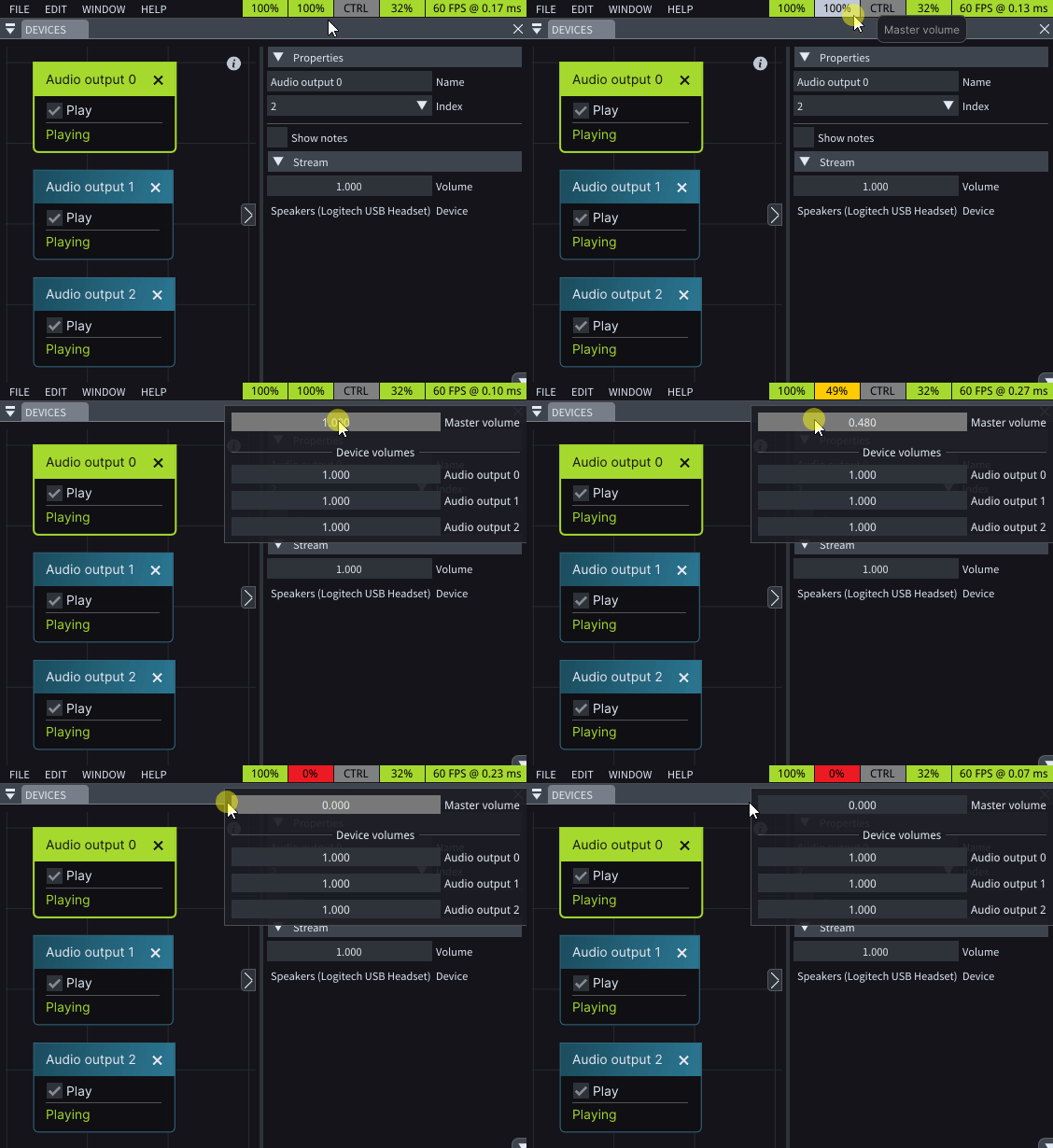
## Master Volume

<figure><img src="https://3312042618-files.gitbook.io/~/files/v0/b/gitbook-x-prod.appspot.com/o/spaces%2F9sVaJpWJhPbmscipukhh%2Fuploads%2Fgit-blob-6db19fdaf2423d89093dc033429be1308d879fae%2FMasterVolume.gif?alt=media" alt=""><figcaption></figcaption></figure>

## CTRL

*Master Control*, or *CTRL*, is a powerful feature designed .

### Lock UI

Once activated, *Lock UI* locks all program functionalities and access until the correct password is entered.

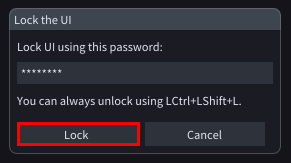
To enable this feature, click on the **CTRL** button and choose **Lock UI**.

<figure><img src="https://3312042618-files.gitbook.io/~/files/v0/b/gitbook-x-prod.appspot.com/o/spaces%2F9sVaJpWJhPbmscipukhh%2Fuploads%2Fgit-blob-84f1c31a96a8aad524ed075a053e4d9b059b872e%2Fimage.png?alt=media" alt=""><figcaption></figcaption></figure>

Upon clicking, a *Lock the UI pop-up* will appear, populated with the default lock password chosen in the *Preferences Window*, under the *General* tab.

Once you click **Lock** button, the UI will be locked.

<figure><img src="https://3312042618-files.gitbook.io/~/files/v0/b/gitbook-x-prod.appspot.com/o/spaces%2F9sVaJpWJhPbmscipukhh%2Fuploads%2Fgit-blob-bfd2fe55eda15ddaccb8263a3e45ebb106e4075e%2Fimage.png?alt=media" alt=""><figcaption></figcaption></figure>

To unlock it, you could either type the correct password, as entered in the *Lock the UI pop-up*, or you can press **LeftCtrl + LeftShift + L***.*

This security measure ensures that unauthorized users cannot interact with or make any changes to the program's settings, configurations, or content until the correct password is provided.

{% hint style="info" %}
**Good to know:** Default password is **LightAct**.
{% endhint %}

### Lock Cursor to App

When enabled, **Lock cursor to app** keeps the cursor confined to the application window, making sure it does not exceed the boundaries of LightAct's GUI.

<figure><img src="https://3312042618-files.gitbook.io/~/files/v0/b/gitbook-x-prod.appspot.com/o/spaces%2F9sVaJpWJhPbmscipukhh%2Fuploads%2Fgit-blob-aee352a7b7534c202e58ca575dc9c0bbdf65dc1c%2FCTRLLockCursor.png?alt=media" alt=""><figcaption></figcaption></figure>