> For the complete documentation index, see [llms.txt](https://docs.lightact.com/llms.txt). Markdown versions of documentation pages are available by appending `.md` to page URLs; this page is available as [Markdown](https://docs.lightact.com/quick-start/user-interface/top-bar.md).
# Top Bar
LightAct's Top Bar is populated with a lot of useful information regarding your machines' and projects' state.
In this chapter, we will go over a few of the options it offers.
## Master Fade
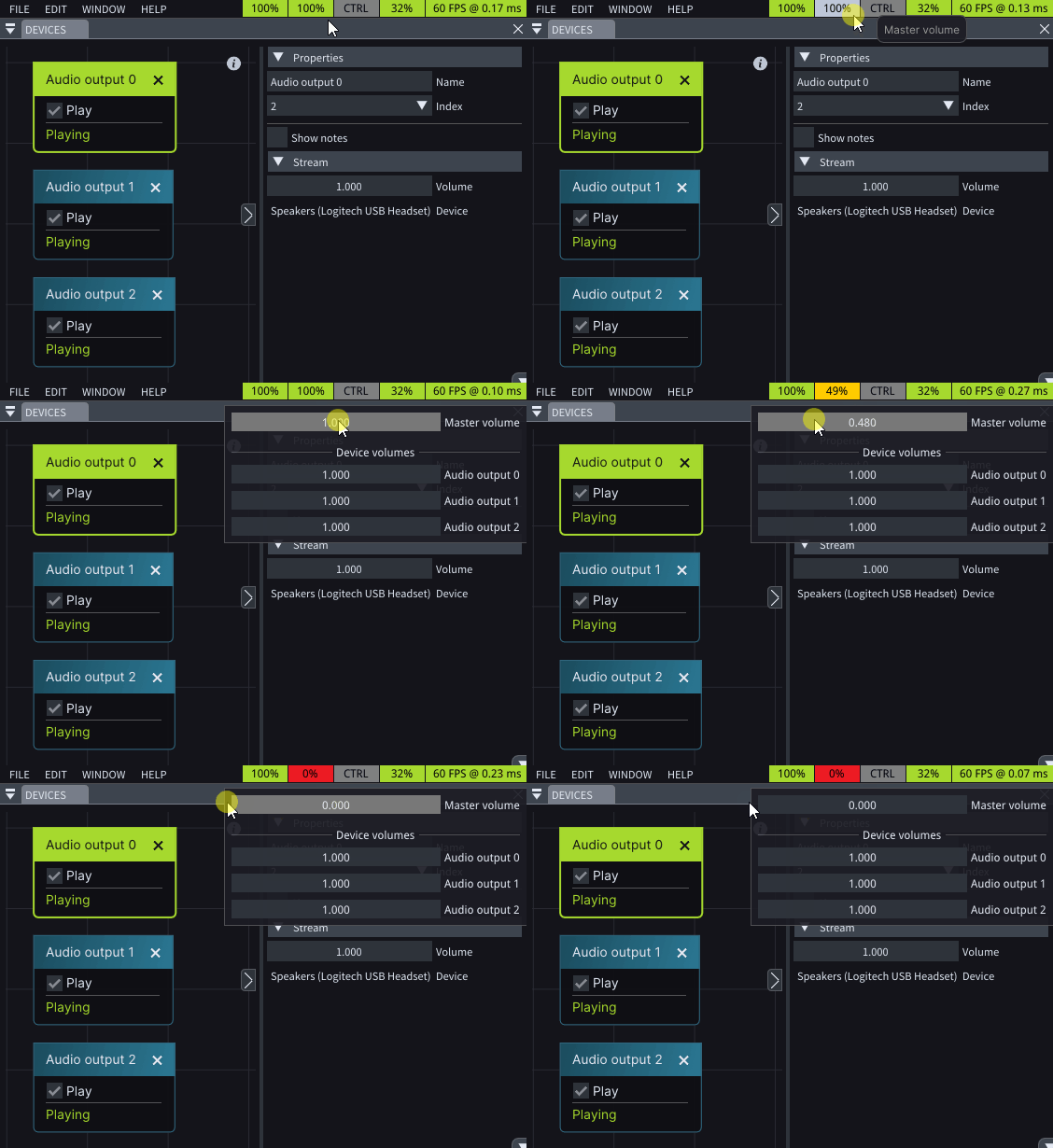
## Master Volume
## CTRL
*Master Control*, or *CTRL*, is a powerful feature designed .
### Lock UI
Once activated, *Lock UI* locks all program functionalities and access until the correct password is entered.
To enable this feature, click on the **CTRL** button and choose **Lock UI**.
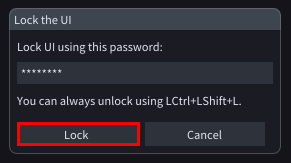
Upon clicking, a *Lock the UI pop-up* will appear, populated with the default lock password chosen in the *Preferences Window*, under the *General* tab.
Once you click **Lock** button, the UI will be locked.
To unlock it, you could either type the correct password, as entered in the *Lock the UI pop-up*, or you can press **LeftCtrl + LeftShift + L***.*
This security measure ensures that unauthorized users cannot interact with or make any changes to the program's settings, configurations, or content until the correct password is provided.
{% hint style="info" %}
**Good to know:** Default password is **LightAct**.
{% endhint %}
### Lock Cursor to App
When enabled, **Lock cursor to app** keeps the cursor confined to the application window, making sure it does not exceed the boundaries of LightAct's GUI.