> For the complete documentation index, see [llms.txt](https://docs.lightact.com/llms.txt). Markdown versions of documentation pages are available by appending `.md` to page URLs; this page is available as [Markdown](https://docs.lightact.com/projection-mapping/iris/iris-troubleshooting.md).
# Iris Troubleshooting
## Black lines in the incoming images
This is usually seen in Iris folder in LightAct's Program Data folder during projector calibration. It means you need to change some settings of your network adapter.

Go to network settings -> Ethernet and then click on Change adapter options.

Double click on the Ethernet adapter connected to the same network as your Iris camera(s).

Click on **Properties**.

Click on **Configure**.

Click on **Advanced** tab.

Make sure all of the above settings are as shown above.
### Double checking with Vimba Viewer
For Iris Troubleshooting it is useful to download Vimba SDK, which should be available on [this link](https://www.alliedvision.com/en/products/software/). As part of this SDK, there is also an app called Vimba Viewer, which allows you to monitor all Iris cameras on the network.

In the software you should see all Iris cameras connected to the network. They will show up as Mako G-507B. Click on one of the checkboxes to open the viewer.

Click on Freerun.
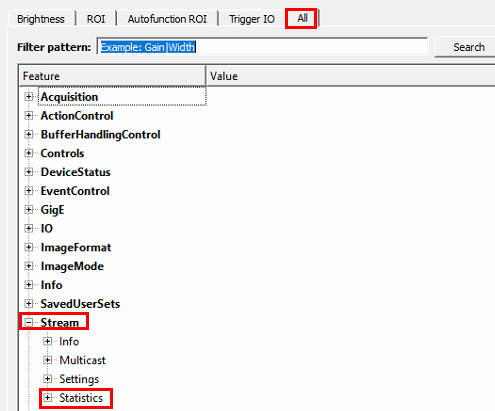
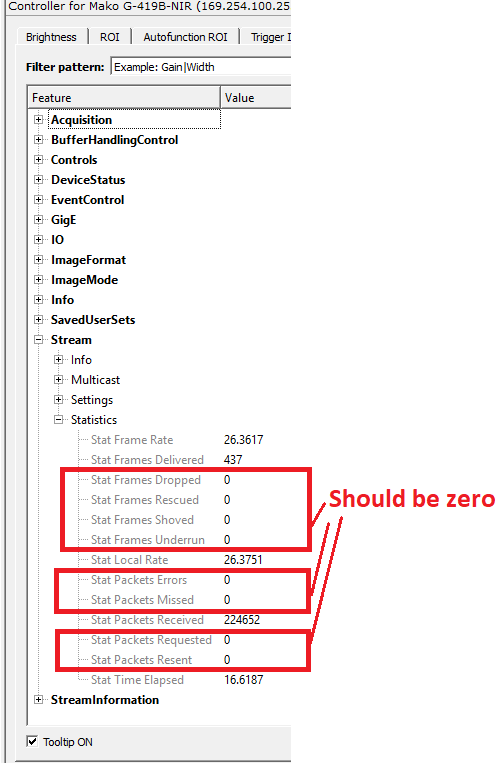
Open All tab, then expand Stream and Statistics.
All of the marked fields should be zero.