> For the complete documentation index, see [llms.txt](https://docs.lightact.com/llms.txt). Markdown versions of documentation pages are available by appending `.md` to page URLs; this page is available as [Markdown](https://docs.lightact.com/output-setup/output-management/set-up-mosaic.md).
# Set up Mosaic
{% hint style="danger" %}
Before starting with this process, please make sure to either remove the user password from your machine or set your account to automatic login. This will make sure that if you experience any system shutdowns or bluescreening during this heavy process, you will still be able to enter your machine upon reboot.
{% endhint %}
{% hint style="warning" %}
Please note, you can combine into a Mosaic only displays that have the same resolution and framerate.
{% endhint %}
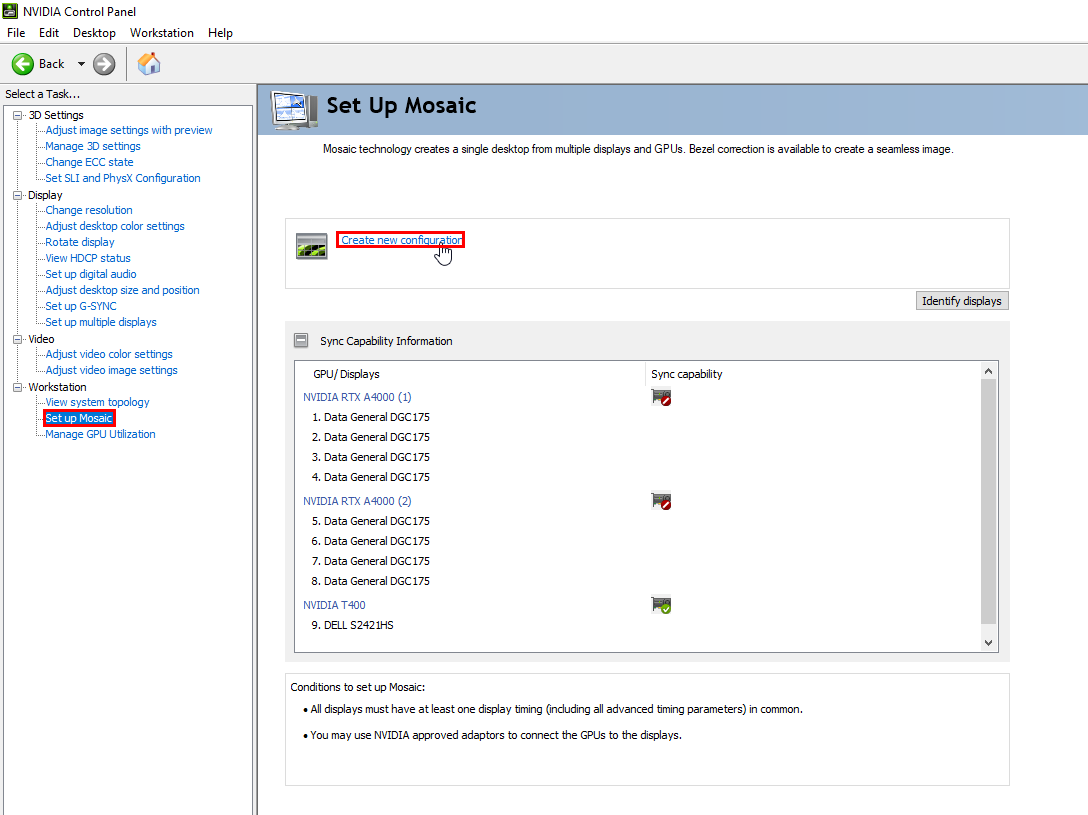
Go to **NVIDIA Control Panel** and under *Workstation*, select **Set up Mosaic**. On the top left choose **Create new configuration**.
Under *Sync capability*, an icon indicates whether the GPUs in your system are able to synchronize multiple displays with each other. If you are not using Mosaic with sync-capable GPUs, it is recommended that you enable **V-Sync**.
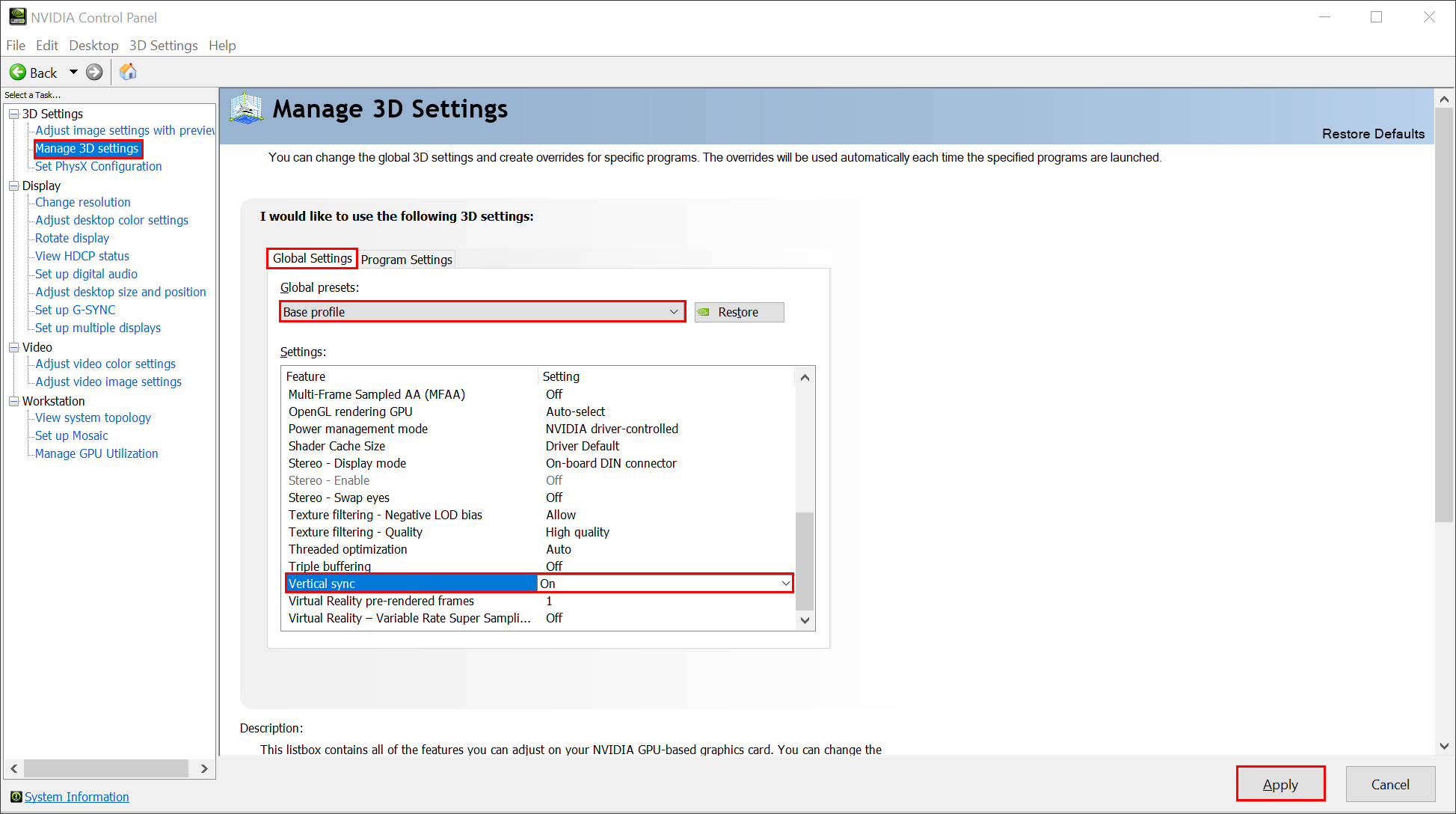
You can do so in the *3D Settings* section, under **Manage 3D Settings**. In the **Global Settings** tab make sure the *Global presets* are set to **Base profile**. In the *Settings area*, look for *Vertical sync*. Once you turn it **On**, click **Apply**.
{% hint style="info" %}
**Good to know**: Installations that require Mosaic Technology with multi-projector or stereoscopic 3D functionality must use Mosaic with sync capable GPUs for proper operation.
{% endhint %}
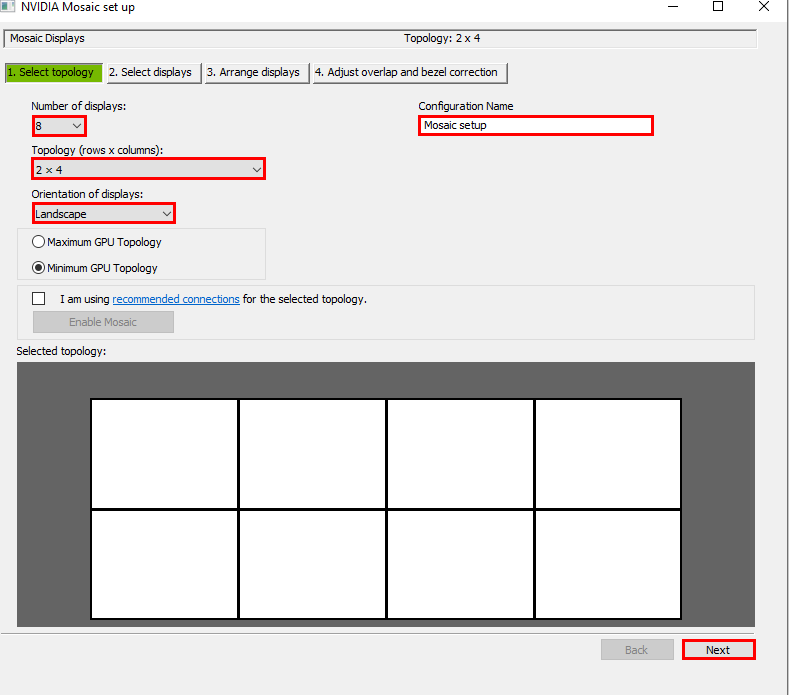
*NVIDIA Mosaic Set up* Window will appear. In the *Select topology* section, you choose the **Number of displays**, **Topology**, **Orientation of displays** and **Configuration name**. When you have everything set up as wanted, click **Next**.
{% hint style="warning" %}
As per NVIDIA's requirements, all displays must have at least one display timing in common. Each individual display must use a resolution greater than 800x600 pixel output. For proper operation, *Total resolution* of entire Mosaic configuration must not exceed 16,384 pixels in either the horizontal or vertical direction.
{% endhint %}
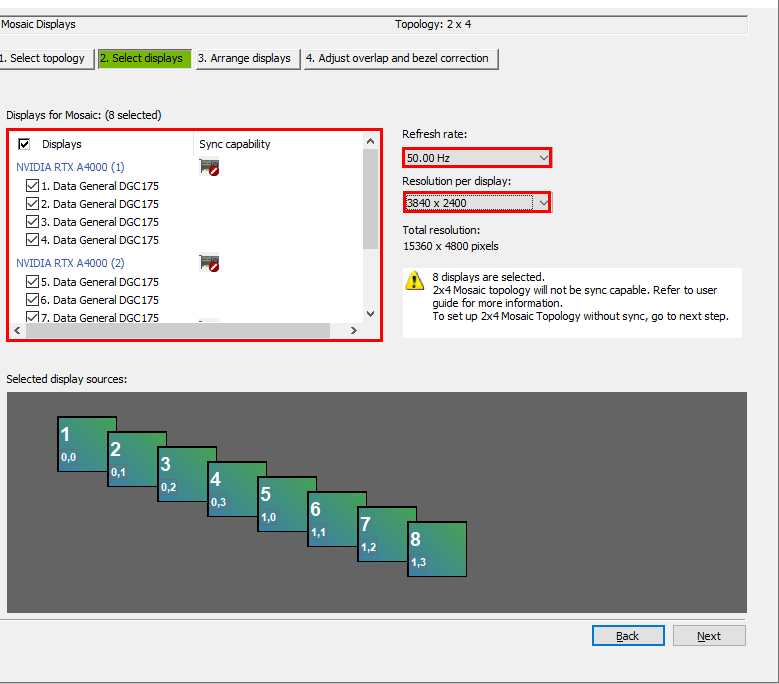
In the *Select displays* section you can choose which of the connected displays you would like to include in the Mosaic. You can also choose the desired **Refresh rate** and **Resolution per display**. Under *Total resolution*, you can see the number of total horizontal and vertical pixels.
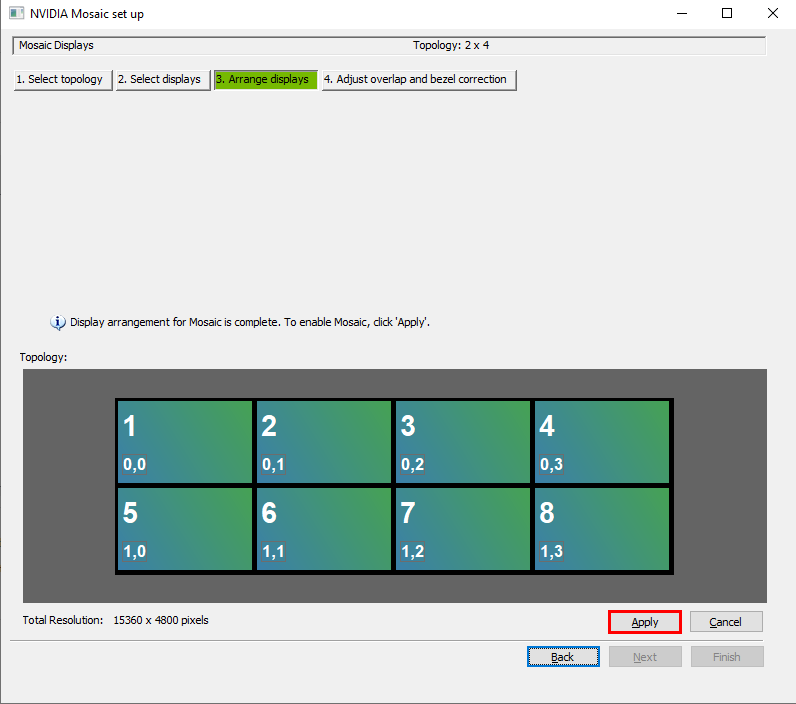
In the *Arrange displays* section you will have the option to place your displays in a desired order. It might be a good idea to take a note of this setup as it might come in handy when you start mapping your content in LightAct. When you are done, click on the **Apply** button.
{% hint style="info" %}
**Good to know**: Due to NVIDIA requirements, you might need to close certain applications that are currently using the NVIDIA driver. In this case, you will get a pop up window with all of those programs listed. To close them, just click **Continue**.
{% endhint %}
{% hint style="info" %}
**Good to know**: During this process you might experience some display flashing. Furthermore, it might take more than 30 sec for the new configuration to be applied.
{% endhint %}
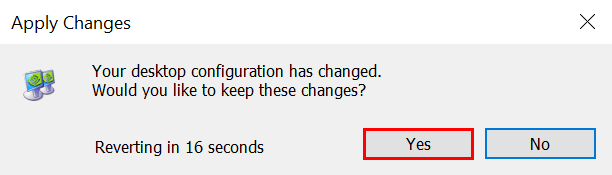
Once the changes have been applied, you need to tell your machine to keep them. An *Apply Changes* pop up window will appear where you will have around 20 seconds to confirm your choices. Select **Yes**.
{% hint style="warning" %}
Please beware that if you do not click **Yes** in the *Apply Changes* window, *NVIDIA Control Panel* might start acting 'weird'. In that case, please close *NVIDIA Control Panel*, open it again and re-start the whole process.
{% endhint %}
To finish up the process you can either click on **Finish** button on the bottom right corner or you can continue to the *Adjust overlap and bezel correction.* In this section, you have the option to adjust the horizontal and vertical edge gaps as needed. If you have sync-capable GPUs, you can also overlap edges.