> For the complete documentation index, see [llms.txt](https://docs.lightact.com/llms.txt). Markdown versions of documentation pages are available by appending `.md` to page URLs; this page is available as [Markdown](https://docs.lightact.com/output-setup/output-management/gpu-management-troubleshooting.md).
# GPU Troubleshooting
I am experiencing NVIDIA Mosaic driver related issues
1. Remove installed NVIDIA drivers.
2. Shutdown the system.
3. Double-check that all monitor cables are connected to the graphics card.
4. Boot the system.
5. Reinstall NVIDIA drivers.
I am experiencing Blue Screen of Death while setting up Mosaic
While operating in Mosaic mode, any changes to the setup, such as adding or removing monitors, can cause a system crash resulting in a Blue Screen of Death or system freeze.
Another reason for such an outcome might be the total resolution of your Mosaic display settings exceeding 16,384 pixels in either the horizontal or vertical direction. In that case, please [modify Mosaic](/output-setup/output-management/modify-or-disable-mosaic.md#modify-mosaic) so that the total pixels are properly distributed.
A third reason for BSOD might be pushing the limit of data that can move across the PCIe bus onto your machine.
I experienced Blue Screen of Death while Mosaic was set to Primary Display
If this is the case, you are most likely having trouble logging into your Windows account. The reason for this, in most cases, is not having removed your user password or set autologin before you started setting up Mosaic.
In this scenario you will very likely need to go through recovering Windows. Not to worry, along with the reActor server, we also send you a Windows Recovery dongle. Now is the perfect time to use it.
The idea is to start Windows 10 in Safe Mode by booting from a recovery drive. Insert the received USB recovery drive to your reActor server. After you load its content and *Choose a keyboard layout*, in *Choose an option* window select **Troubleshoot**. Go to **Advanced options -> Startup Settings -> Restart***.* After Windows 10 restarts, you will have the option to press **4** or **F4** key on your keyboard to *Enable Safe Mode*. Once Windows 10 enters this mode, uninstall all of your NVIDIA Drivers. If you still haven't, remove your user password or set autologin.
The next time you reboot the server, Windows should start normally. After that you should reinstall nVidia drivers if they don't automatically.
Only some displays in Mosaic setup output content
If you experience this issue, please go through the following list:
* Vertical Sync in NVIDIA Control Panel is set to On.
* All monitors are correctly connected to the graphics device and are active.
* [Disable ](/output-setup/output-management/modify-or-disable-mosaic.md#disable-mosaic)and [re-create](/output-setup/output-management/set-up-mosaic.md) your Mosaic setup in the NVIDIA Control Panel.
* This might be a driver related issue. Please refer to the [abovementioned](#i-am-experiencing-nvidia-mosaic-driver-related-issues) problem.
Black bars on output

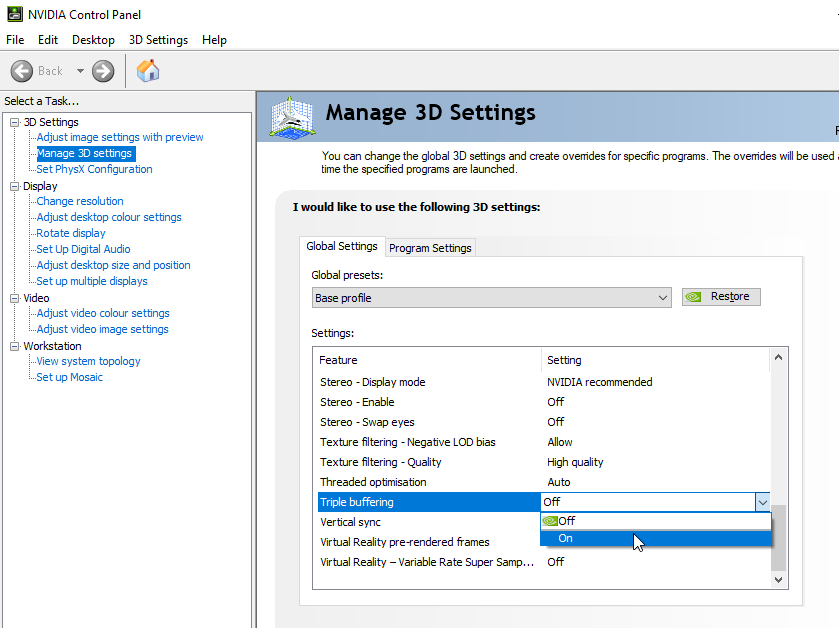
In some rare cases you may experience flickering black bars on outputs. This is not caused by tearing, but are due to a bug in the Nvidia driver. This can be mitigated by enable-ing triple buffering in NVidia settings.
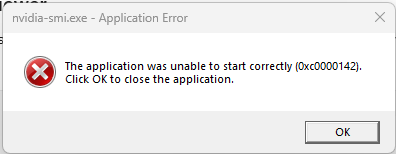
Nvidia-smi.exe
If you see this error, it is most likely caused by an underlying GPU driver issue. There is no known workaround except to try and reinstall all graphics drivers.