> For the complete documentation index, see [llms.txt](https://docs.lightact.com/llms.txt). Markdown versions of documentation pages are available by appending `.md` to page URLs; this page is available as [Markdown](https://docs.lightact.com/output-setup/output-management/edid-management-with-nvidia-control-panel.md).
# EDID Management with Nvidia Control Panel
The process of a fixed EDID follows these 3 steps:
1. **Exporting** the existing EDID from the display into a file
2. **Loading** the EDID from the file
3. **Unloading** the EDID at the end.
## Exporting EDID
To export a display's EDID, you first have to connect it to a GPU which is running on the machine you are working on. Open the **NVIDIA Control Panel** and under *Workstation* Select **View system topology**. Here, you will find a list of all the GPUs connected to your machine along with their valid Display Connectors. Choose one and click on **EDID** link beside it.
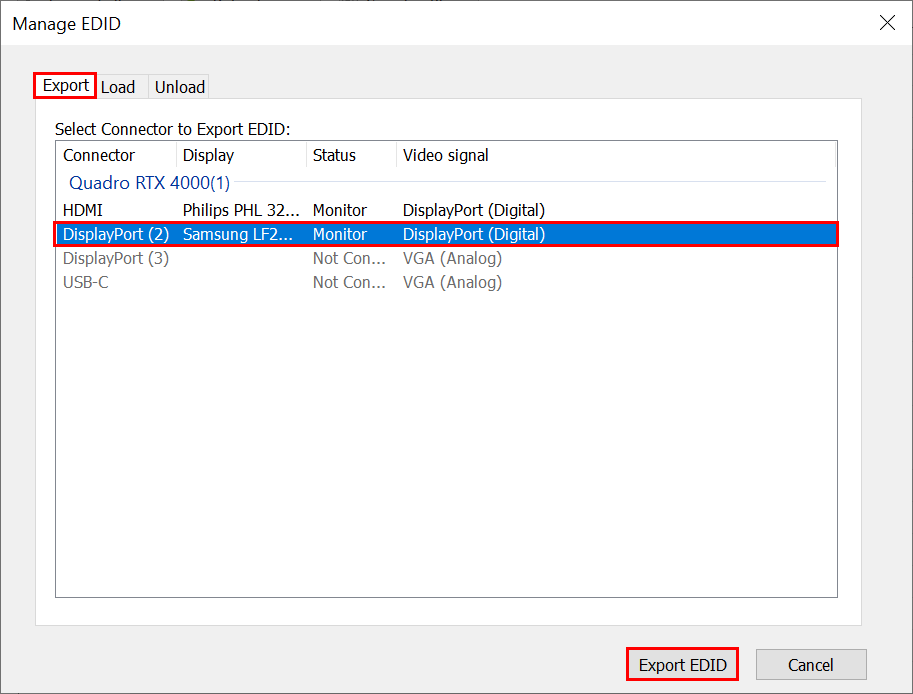
A new window called *Manage EDID* will appear. In the **Export** tab select the display you would like to export the EDID from and click **Export EDID**.
Save this file to a known location as you will need it later.
## Loading EDID from File
So far, we have only created an EDID file. We now need to tell our machine to use it as the main source of information regarding the capabilities of our display.
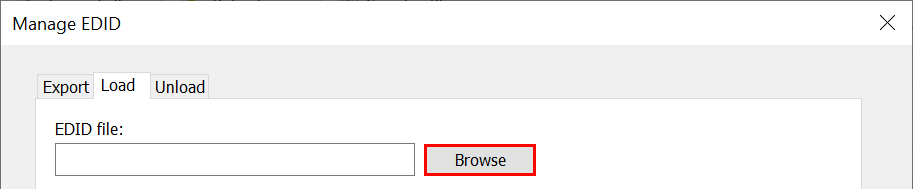
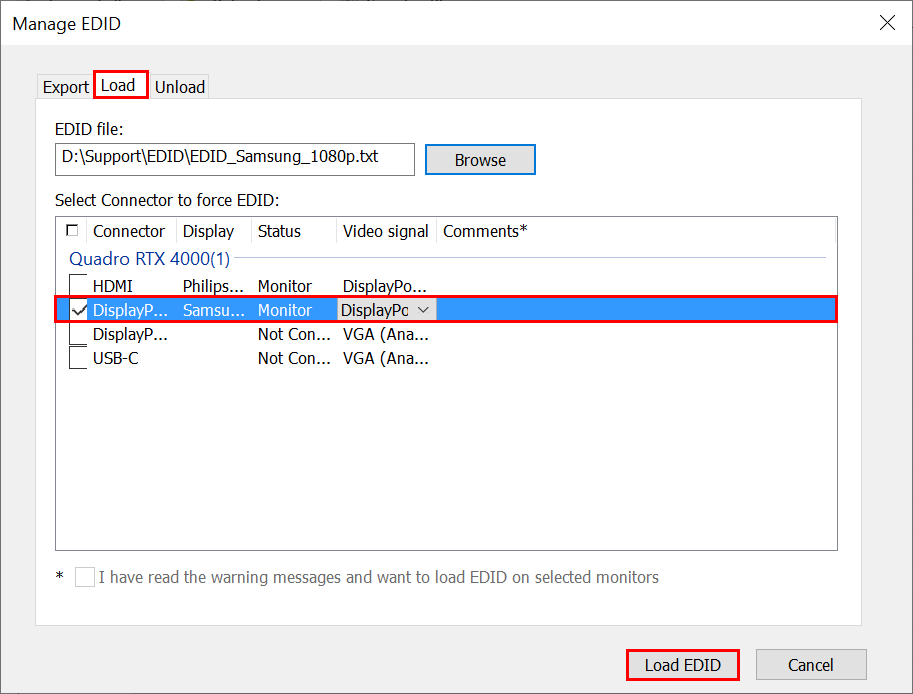
In the **Load** tab of Manage EDID Window, click on **Browse** button to select the file containing the EDID information that you would like to apply.
Now, select the compatible *Display Connector* and choose the correct *Video Signal*. In our case, that is *DisplayPort(Digital)*. Finally click on **Load EDID** button.
{% hint style="warning" %}
Please be careful not to Load the wrong EDID file to a display. This could lead to some serious issues and it might cause your display or GPU to malfunction. If there are any incompatibilities between the EDID file and the EDID data your display is sending, you will get warning messages in the Comments section.
{% endhint %}
{% hint style="info" %}
**Good to know**: during this process you might experience your displays flashing.
{% endhint %}
Upon successfully loading the EDID file, a pop up window will appear confirming so.
## Unload EDID
When you are done using a display, you first need to tell your machine to unload its EDID file.
{% hint style="warning" %}
If your GPU is using fixed EDID and you connect a display to it that cannot read the video signal, you might not be able to access the computer.
{% endhint %}
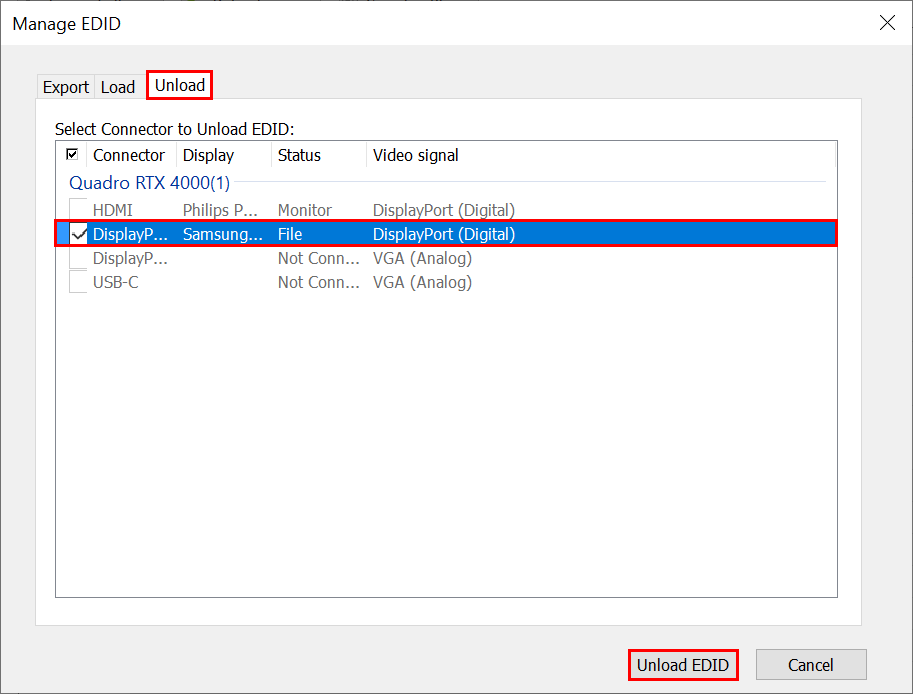
In the *Manage EDID* Window, go to the **Unload** Tab. Here, choose the *Display Connector* whose EDID file you'd like to unload. To finalize the process, click on **Unload EDID**.
{% hint style="info" %}
**Good to know**: during this process you might experience your displays flashing.
{% endhint %}
A pop up window will inform you whether the action has been successful.